1
Open Add New Plugin
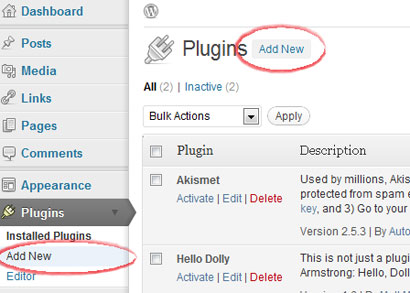
Log in to your WordPress admin, open Plugins, then choose Add New.
CMS plugin
Self-hosted WordPress sites can use the Hitsteps plugin from the WordPress admin. WordPress.com sites have limited JavaScript support, so use the widget method only when your plan allows it.
 Self-hosted WordPress recommended
 Install guide
Log in to your WordPress admin, open Plugins, then choose Add New.
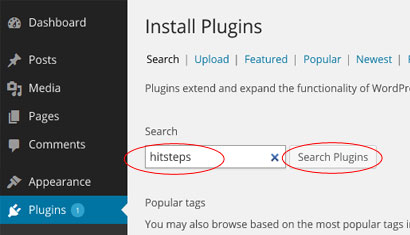
Search for the Hitsteps visitor manager plugin from the plugin directory.
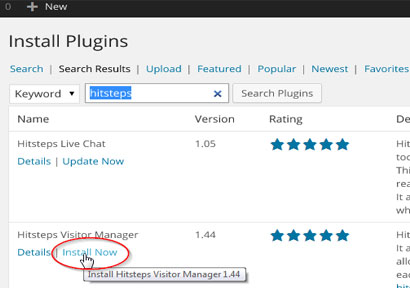
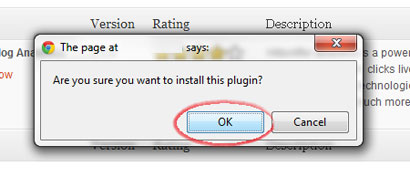
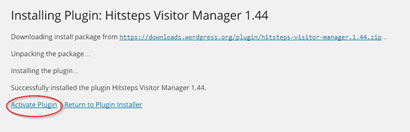
Click Install Now, confirm installation, then activate the plugin.
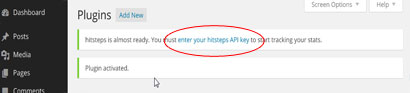
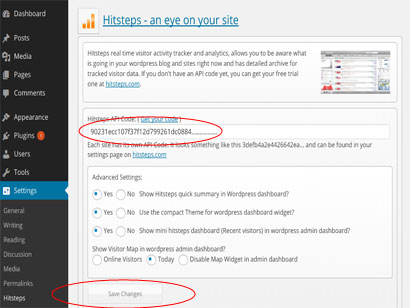
Open the Hitsteps plugin settings, paste your API key, and save.
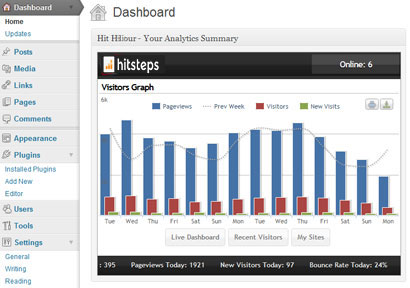
After tracking starts, WordPress can show a quick summary and link you to the full Hitsteps live dashboard.
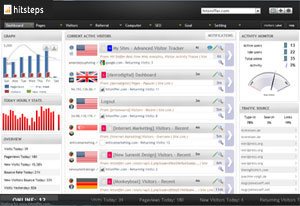
After install
WordPress analytics workflows
Hitsteps brings the WordPress signals teams use for acquisition, conversion review, support, and reporting into one practical workflow.
Review clicks, impressions, CTR, average position, queries, and pages from your verified Google Search Console property.
Record WooCommerce order revenue and successful supported form submissions, then connect them to available visitor source and recent journey context.
Use goals, campaigns, funnel and conversion reports, exports, scheduled reports, and AI assistance to decide what to do next.
WordPress use cases
Start with the question your WordPress team needs to answer, then follow the visitor, source, conversion, or report context that supports the next decision.
Review UTM source and campaign attribution, order revenue, landing page, recent journey, and available visitor context around a purchase.
Measure successful supported form submissions and add available journey context so a sales or support team can understand what happened before the inquiry.
Compare Search Console queries and pages with live sources, top content, returning visitors, and page behavior.
Use multi-site access, PDF or CSV exports, scheduled reports, live paths, and AI-assisted summaries across client properties.