Website statistics tracker for live and historical web stats
Install one analytics tag and turn raw website activity into useful first-party statistics: who visited, which pages they viewed, where they came from, what they did next, and how your traffic changes over time.
- See live activity and historical website statistics in one dashboard
- Measure your own site directly instead of relying on third-party traffic estimates
- Connect totals to individual visitor journeys, goals, heatmaps, and sources

Track the website statistics that explain both volume and behavior
A useful website stats tracker does more than count requests. It organizes traffic into visitors, visits, pages, sources, actions, and trends that help you decide what to improve.
Visitors and visits
Separate people or browsers from the sessions they create, then compare new, returning, active, and recent visitors.
Pageviews and popular pages
See which pages receive attention, where visits begin, where they end, and the path people take between them.
Traffic sources and campaigns
Connect referrals, campaign parameters, search traffic, and direct visits to the landing pages and behavior that followed.
Devices and locations
Compare browser, operating system, device class, screen, country, region, and approximate city signals available with each visit.
Goals and tracked actions
Measure the actions that matter—such as signups, downloads, outbound clicks, campaign milestones, or other configured events.
Real-time and historical trends
Watch traffic as it happens, then change the date range to compare patterns across days, weeks, campaigns, and releases.
Understand your visitors. Take action with confidence.
Use it when you need live visitor context, practical installation routes, and action tools around the traffic you already have.
Maintained for real websites
Hitsteps has kept evolving across website platforms, browser changes, analytics shifts, and store workflows.
Works where your site already lives
WordPress, Shopify, Wix, Google Tag Manager, HTML, CMS, commerce, browser, and desktop setup paths are documented from one hub.
From tracking hit to next action
Live dashboard, visitor profiles, heatmaps, chat, Segments, uptime, reports, and alerts stay connected after tracking is installed.
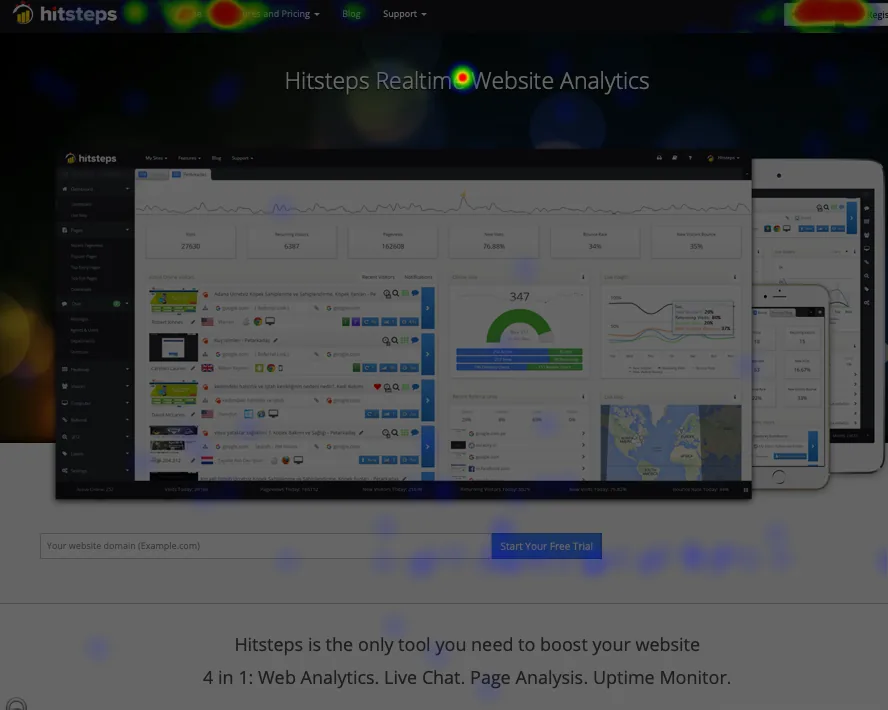

Can you see web stats for any site?
You can directly measure activity for a site you own or manage by installing analytics, reading its server logs, or accessing its platform reports. Another company’s visitors, pageviews, and conversions are normally private.
Hits, pageviews, visits, and visitors are not the same thing
“Website hits” is still a common search phrase, but it can mean several different things. Define the number before using it to judge performance.
| Metric | What it usually means | Best use |
|---|---|---|
| Hit | A server request or tracked interaction, depending on the tool. One page can produce many server hits. | Technical logs or specifically defined interactions—not a reliable synonym for people. |
| Pageview | One tracked view of a page. Reloads and repeat views can create additional pageviews. | Content demand, navigation patterns, and popular or weak pages. |
| Visit or session | A group of activity from one visitor during a browsing period, based on the tool’s session rules. | Landing pages, journeys, engagement, campaign quality, and conversions. |
| Visitor | A browser or known user recognized by the analytics system. Blocking, consent, devices, and identifiers affect the count. | Audience size, returning behavior, profiles, and customer context. |
How to start tracking website statistics
Add the website to your analytics account
Create a separate site profile so its tracking code, timezone, access, reports, and goals stay organized. Use the production domain rather than a temporary staging hostname.
Install the asynchronous tracking tag once
Place the code in the shared site template or use an integration for WordPress, Shopify, Wix, Google Tag Manager, and other platforms. Avoid duplicate tags.
Verify a complete test visit
Open the website in a separate browser, visit several pages, and confirm the live dashboard shows the source, page path, device, and actions you expect. Check consent, content-security policy, caching, and tag-manager publishing if it does not.
Define goals and useful Segments
Track the outcomes that matter to the website instead of treating every pageview as equal. Configure campaign names, important clicks, downloads, signups, purchases, or other meaningful events.
Review the same small set of reports regularly
Start with visitors, pageviews, sources, landing pages, exits, goals, and returning behavior. Add specialist reports only when they answer a decision your team actually needs to make.
Combine summary web stats with individual visitor context
Totals show what changed across the website. Visitor-level detail helps explain why it changed and what happened during a particular journey.
Use aggregate website statistics for patterns
Compare periods, pages, sources, devices, campaigns, and goals to find broad changes. This is the right level for traffic trends, content performance, and regular reporting.
Use visitor tracking for the journey
Open the live or recent visitor stream when you need page-by-page context, returning history, Segment matches, chat context, or the sequence behind a goal. Explore real-time visitor tracking.
Website stats worth checking every week
- Visitors, visits, and pageviews compared with the previous equivalent period.
- Top landing pages and the sources or campaigns that brought people to them.
- Pages with repeated exits before an expected next step or goal.
- Goals and important actions—not only traffic volume.
- New versus returning visitors and changes in repeat interest.
- Unexpected device, browser, location, or traffic-source changes that may reveal a broken page or campaign.
Website statistics tracker FAQ
How can I see how many visits or hits my website gets?
Install an analytics tag on the pages you own, verify it with a test visit, and read the resulting visitor, visit, pageview, source, and event reports. Hosting logs can also count server requests, but they need more interpretation and usually do not provide the same visitor journey context.
What is the difference between hits, pageviews, visits, and visitors?
A hit is a broad and sometimes ambiguous request or interaction count. A pageview records a viewed page, a visit or session groups activity during one browsing period, and a visitor represents a browser or known user according to the analytics tool’s identification rules.
Can I check the exact traffic statistics of another website?
Exact website traffic is normally private and requires access to the site, its analytics account, or its server logs. Third-party tools may publish estimates based on sampled or modeled data, but those estimates are not the same as first-party measurements from the website itself.
Can website statistics update in real time?
Yes. A real-time analytics service can show active and recent visits as events arrive, while also keeping historical reports for trends, comparisons, top pages, sources, goals, and other longer-term analysis.
Is there a free website statistics tracker?
Hitsteps offers a free plan so you can add a website, install the tracking code, and confirm that visitor and pageview data reaches the dashboard before deciding whether a paid plan fits your traffic and retention needs.
See useful first-party web stats from your own website
Create a free Hitsteps account, install the tag, and verify your first visitor, pageview, and traffic source in the live dashboard.