Website builder

Install Hitsteps on Wix

Install the Hitsteps Wix app when available so account connection, tracking setup, reinstall repair, and Wix billing are managed automatically. The HTML embed snippet below remains available as a manual fallback.

Before you start

Wix site owner or app install permission
A Hitsteps account or willingness to create one during setup
Wix editor access if using the manual fallback

Install guide

Manual Wix fallback

1

Use the Wix app first

If you started from the Wix App Market, complete the Hitsteps connection screen. The app will create or connect your Hitsteps site and install tracking automatically.

2

Add the HTML embed app

Open the Wix App Market, search for HTML, and add the HTML iFrame / Embed app to your site.

3

Place it on every page

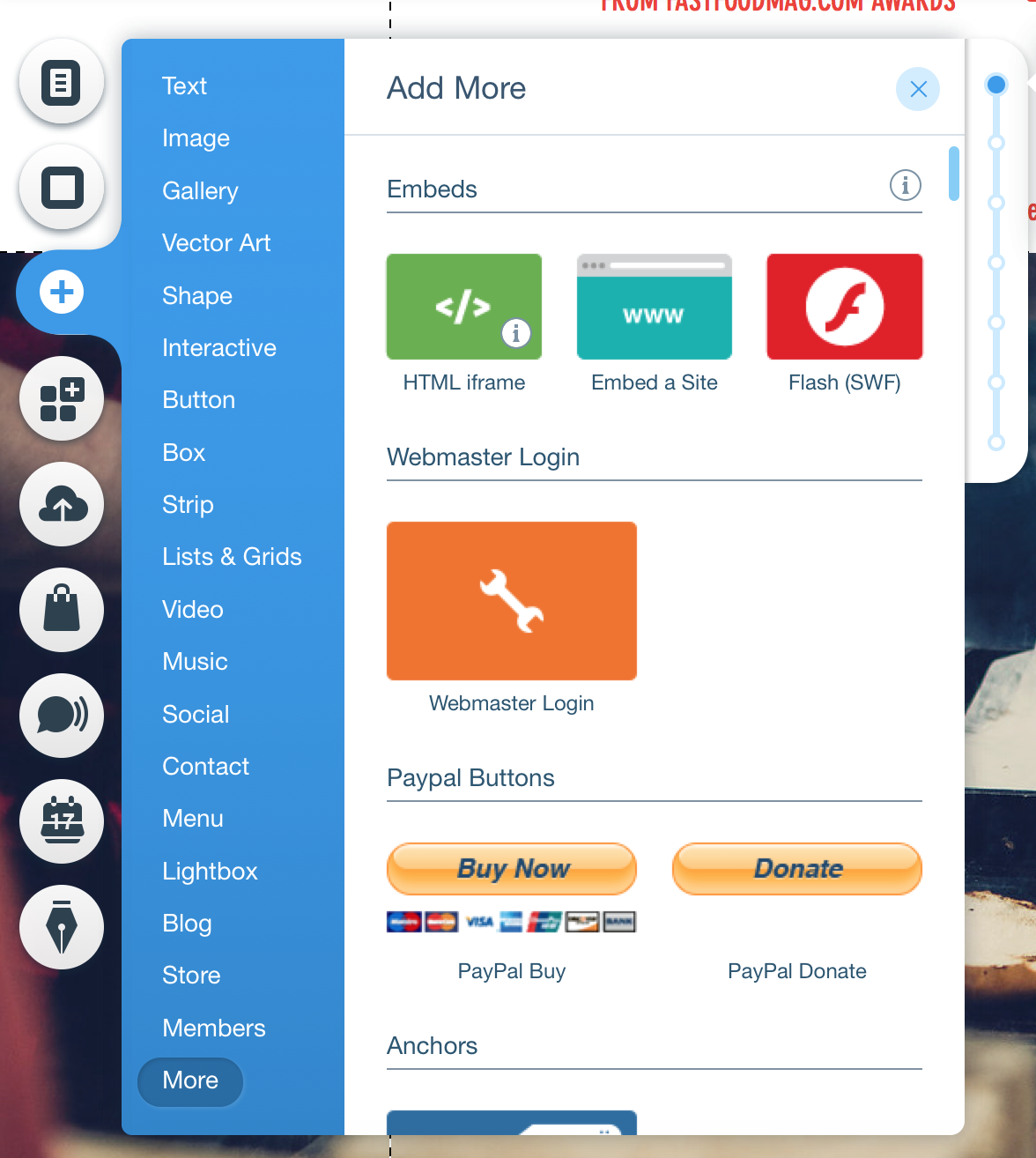
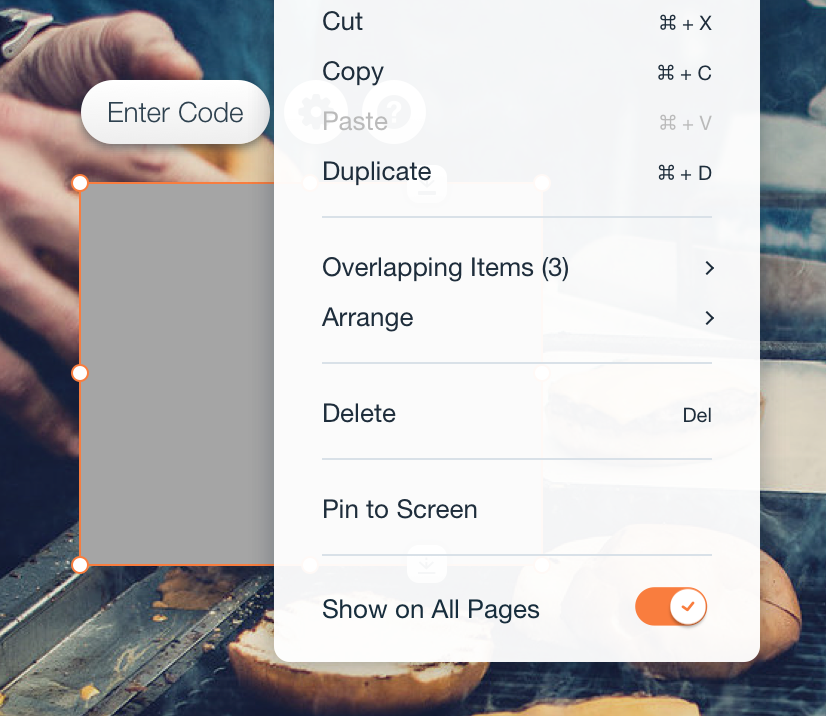
From the Wix editor, add the HTML iframe from the More section and enable Show on all pages.

Add Wix HTML iframe
Show Wix widget on all pages
4

Paste the Wix tracking snippet

Copy this snippet into the embed code area. Replace YOURAPICODE with your Hitsteps API key.

5

Save and publish

Save the widget, publish your Wix site, then verify the visitor in your Hitsteps live dashboard.

Good to know

  • Do not paste a duplicate manual snippet if the Wix app has already installed tracking.
  • Do not leave YOURAPICODE in the manual snippet. Replace it with the API key from Hitsteps.
  • The manual snippet watches Wix navigation changes so single-page transitions are counted correctly.

After install

Why Wix sites keep Hitsteps connected

The Wix app path can manage connection, billing, reinstall repair, and tracking setup more safely than a loose manual snippet.
The manual fallback still supports single-page Wix navigation so page transitions are counted after the first load.
Hitsteps gives Wix owners live visitor profiles, referrers, behavior context, and chat-ready signals after installation.