What you will learn #
This guide is for anyone who wants to measure the moments that matter on their website: a signup, a purchase, a download, a form sent, a click on an external partner link. You will learn how to send custom Actions from JavaScript, define Goals and manual conversions, group conversions into Campaigns so you can compare traffic sources, and chain your existing Segments into multi-step Funnels that show where visitors drop off.
After reading it you will be able to set up all four features, read their reports, and fix the common "no data" situations yourself.
Before you begin #
- A Hitsteps account with a website already added and the tracking code installed (see the getting-started chapter and /how-to-track-website-visitors/). Without tracking, none of these pages collect anything.
- You need at least one real visit in the period you select, otherwise every report honestly shows zero rows.
- Goals and Campaigns need a plan that includes goal slots. Free plans have no goal slots; Starter, Growth, Pro and Business each include a budget of goal and campaign slots that is shared between the two features. The public plan table shows "Campaigns and Goals You Can Track": Starter 3, Growth 5, Pro 22, Business 50.
- Funnels are a Pro-and-above feature. Free, Starter and Growth do not include Funnels. Pro includes 20 Funnel slots, Business 50. Funnels are built from Segments, so you also need at least a couple of Segments, which are themselves plan-limited (Starter 3, Growth 10, Pro 20, Business 50).
- Role: whoever manages the website in the account can use these reports. Editing or deleting a Goal is limited to the account member who created it. Annotations on the Actions chart require a member with editing power.
Step by step #
Actions Explorer
4.1 What an Action is
An Action is a single custom event you send yourself, made of two parts: an Action key (required, for example added_to_cart) and an optional value (for example shoes). Actions describe interactions that a pageview cannot: adding a product to a cart, reaching 50% of a video, clicking a plan choice, submitting an express button.
Hitsteps also records some Actions itself under reserved namespaces: browser and system events (keys starting with hitsteps.system.), video progress from the built-in video tracker, and commerce keys such as Shopify checkout steps and order receipt events (for example shopify_checkout_stage, commerce.order_paid). Your own events live under the Custom category and never collide with the reserved ones.
4.2 Sending a custom Action
After your normal Hitsteps tracking code has loaded, in a page script or an event handler:
<script>
  hitsteps.trackAction('cart_category', 'clothes');
  // or with a value-less key:
  hitsteps.trackAction('signup');
  // optional short alias:
  hitsteps.action('signup');
</script>
Rules to remember:
- The key is required and can be up to 64 UTF-8 bytes. The value is optional and can be up to 255 UTF-8 bytes. Key and value must not contain control characters.
- An optional third argument can attach configured Custom Dimensions to the same Action when Custom Dimension collection is enabled:
js hitsteps.trackAction('checkout_started', 'pro', { plan: 'pro', returning_customer: true }); - Calling
trackActionrecords one Action and does not add a pageview. - The call returns
truewhen the beacon is queued andfalsewhen tracking is disabled or the input is invalid. - Use stable, descriptive keys and consistent values so reports stay useful over time.
- Do not send passwords, payment-card data, authentication secrets or unnecessary personal data in keys, values or dimensions.
New custom Actions are available immediately in Recent Visitors and appear in the Actions Explorer once a complete background pass has prepared the retained history.
4.3 Reading the Actions Explorer
Top of the page, left to right:
- Category chips filter the event universe: All Actions, Behavior, Custom, Commerce, Video, System. Choosing one starts a fresh view with the same dates and Segment.
- Segment dropdown narrows the report to one of your saved visitor Segments. The report counts the Actions of visitors who matched the Segment during the selected period; multiple Action key and value conditions stay correlated to the same visitor.
- Export visible CSV downloads exactly the rows you see, with columns Action key, Value, Share, Events, Visitors and Last seen.
- Open Recent Visitors jumps to the visitor list for the current selection.
The four summary tiles show Action events (total in the range, with a daily average), Unique visitors, Action keys (with the current top key), and Busiest day (with a link to that day's visitors). Below them the Action activity over time chart plots events per account-local day. Totals include complete account-local days wholly inside your selected and retained range; partial boundary days are excluded and labelled. Click a day to open its visitors, or annotate it if your role allows.
The Top Action keys table lists each key with Share (its share of all events in the selection), Events, Visitors and Last seen. Click a key to drill into its Top values, then open the visitors behind any value with the people icon or This action visitors. System and commerce keys show a small badge (System, Commerce, Video) next to their raw name. You can filter visible rows with the search box, and type i to focus the filter, e to export, Esc to clear.
An empty Action value displays as "(empty value)". Such an exact empty value cannot be saved as a Segment, because a blank Segment value means "any value".
If the page shows Preparing your Action history, the retained history for past days is still being backfilled between background passes. New custom Actions keep being recorded and are already filterable in Recent Visitors, so you can start using them right away.
4.4 Retention of Actions
The Explorer keeps Action history up to 30 days, bounded by the data history of your plan (for example 14 days on Free, 30 on Starter, 60 on Growth, 180 on Pro). You can only query days that fall inside both your selected range and this retained window.
Goals
A Goal is a conversion you define: a page a visitor reaches after a desired action ("Thank you for registering" page, receipt, download-completed page) or a manual JavaScript call. For every conversion, Hitsteps records a total and accumulates the revenue you assign.
5.1 Creating a Goal
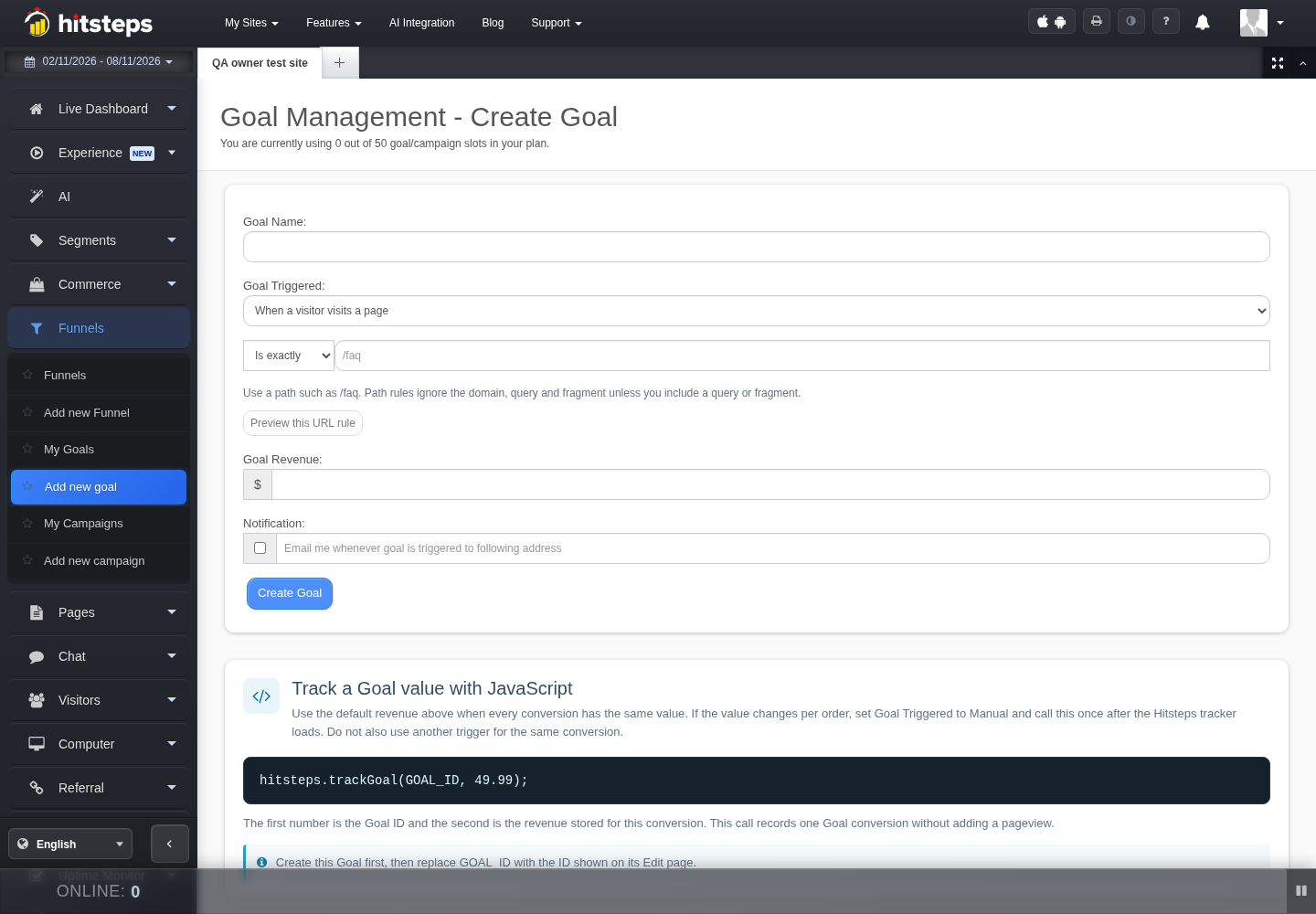
- Open My Goals and click Add New Goal.
- Goal Name: something your team recognises, up to 50 characters.
- Goal Triggered: choose how Hitsteps should detect the conversion: * When a visitor visits a page: the visitor opens a page that matches your rule. * When a visitor downloads a file: the visitor downloads a file that matches your rule. * When a visitor clicks on an external link: the visitor clicks an outbound link that matches your rule. * Manually (using JavaScript): you call the Goal from your own code; no address rule is needed.
- Condition and address: for the three automatic triggers, combine the condition (Is exactly, Contains, Does not contain) with the value. Use a page path such as
/faq. Path rules ignore the domain, query and fragment unless you include a query or fragment in the value. The Preview this URL rule button shows how many recorded visits match before you save. - Goal Revenue (optional): the earnings you assign to one conversion, in US dollars. It feeds the revenue per hit, the goal's total revenue, and the revenue side of any campaign that reaches this Goal.
-
Notification (optional): tick the box and add an email address to be emailed every time the Goal triggers.
-
Click Create Goal. You can create it up to your plan's goal/campaign slot limit. The counter reads "You are currently using X out of Y goal/campaign slots in your plan." When the limit is reached the button is disabled and the page offers an upgrade link.
Goal rules follow the URL rules reference in Step by step, including suggestions that omit query and hash values to protect tokens in your URLs.
5.2 Manual goals and per-order values
If every conversion has the same value, put it in Goal Revenue. If the value changes per order, use the Manually (using JavaScript) trigger and let each conversion carry its own revenue. After the tracker has loaded call once, after the conversion, and do not also use another trigger for the same conversion:
<script>
  hitsteps.trackGoal(GOAL_ID, 49.99);
</script>
The first number is the Goal ID (shown on the Goal's Edit page once it exists) and the second is the revenue stored for this conversion. This records one goal conversion without adding a pageview.
5.3 Reading your Goals
The My Goals list shows, per Goal: Name, Revenue per Hit, Total Hit (number of conversions), Total Revenue, Last Hit, Creation Date and an Action column with view, edit and delete icons. Deleting asks for confirmation; the delete also removes the Goal's recorded history.
Opening a Goal shows its Goal Detail:
- A stat bar with Revenue per Hit, Total Hits, Total Revenue and Last Hit. If the site is in a period with a Goal period selector, the stats respect the selected period.
- Recent visitors who converted, one per row, with each visitor's recorded path (up to the last 30 events) leading to the conversion, expandable.
- First-touch campaign attribution: a table that connects the conversions to the UTM-tagged source, medium, campaign, term and content of each converting visitor's first touch. Untagged conversions group under "Direct / untagged". This links to the UTM and Ad traffic reports.
- Definition history: date, who changed it (Account owner or Team member id) and what changed, from the moment goal definition history is active. If the current report spans a change to the Goal's definition, Hitsteps warns that conversions before and after were counted with different rules or values.
Campaigns
A Campaign attaches one of your Goals to a traffic condition, so you can compare how much traffic from a specific source or landing costs and earns, and see its return. You need at least one Goal first: "You cannot start a campaign without a reachable goal."
6.1 Creating a Campaign
- Open My Campaigns and click Add New Campaign. (If you have no Goal yet, the page tells you to create one first.)
- Campaign Name: up to 50 characters.
- Start the campaign when a visitor comes from (optional): pick the type (a page address that or a search keyword that), a condition (is Exactly, contains, does not contain, None) and the value to match. External URLs keep their domain; suggestions omit query and fragment values.
- The and/or line and Start the campaign when a visitor lands on this address (optional) add a second, optional landing condition with the same condition choices. The two conditions join, so you can require both or build one without the other by leaving the unused one as None.
- Cost: what the campaign costs, for example the price of the advertisement. This is the per-click cost that feeds CPC, Costs and ROI. Leave empty for zero.
- Goal of Campaign: choose the Goal this campaign should drive. The dropdown lists your Goals with their per-hit revenue.
- Click Create Campaign.
A visitor counts for the campaign when they match the start conditions (their visit "Hits" the campaign). When the same visitor later triggers the campaign's Goal, the conversion "Reaches" the campaign and its revenue is added to the campaign, no matter how much page traffic happened between start and goal.
6.2 Campaign reports
The My Campaigns list columns: Name, CPC (cost per click you set), Hits (visitors whose visit started the campaign), Reaches (visitors who then completed the campaign's Goal), Ratio (Reaches as a percent of Hits), Revenues, Costs (per-hit cost accumulated over Hits), ROI (return on investment, (Revenue - Cost) / Cost), Last Hit, Creation Date, and per-row actions.
Two drill-downs per campaign:
- The play icon opens visitors who landed on the campaign page (the campaign start).
- The search icon opens visitors who completed the campaign and reached the goal page, with each visitor's recorded path before the completion.
The campaign detail pages show a stat bar (Cost Per Hit, Total Hits, Total Reach, Total Cost, Revenue, ROI) and the matching visitor lists.
Funnels
A Funnel chains two or more of your existing Segments into an ordered journey and measures how many visitors enter, progress and complete it: for example Everyone > Added to cart > Payment page > Thank you. Each step is a Segment or "Everyone" (all visitors). Funnels are Pro and above.
7.1 Before you start: Segments
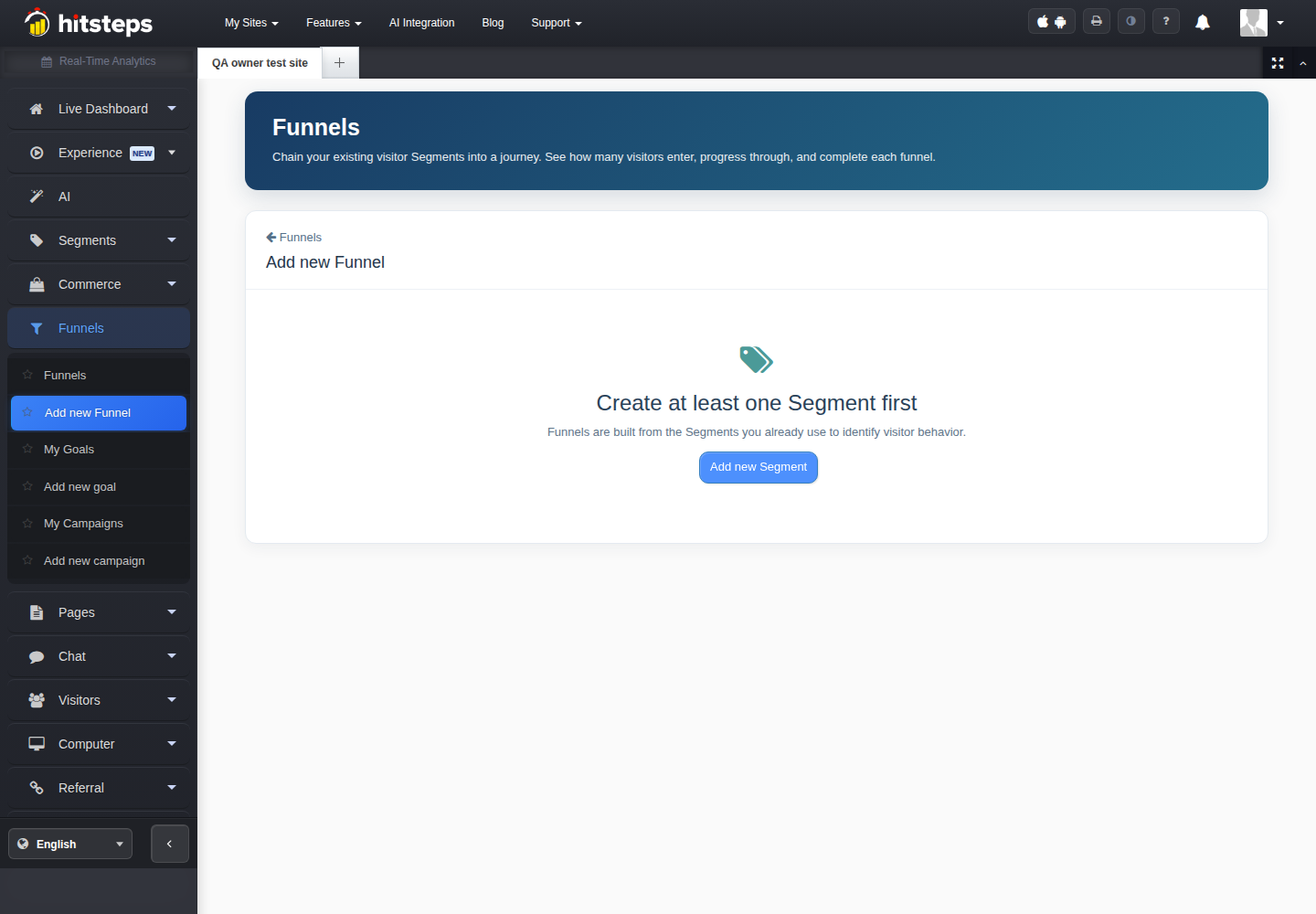
Funnels are built from the Segments you already use to identify visitor behaviour. If you have none, the Add Funnel page shows "Create at least one Segment first" with a button straight to the Segment builder.
A Segment can combine page activity, source, campaign, device, location or custom data, not only page URLs. Supported conditions include page URLs (from the same URL rules editor), and you can add up to 50 separate custom Action key and value requirements to one Segment. See the Segments chapter for the full condition list.
7.2 Creating a Funnel
- Open Funnels and click Add new Funnel.
- Funnel name: something your team recognises, up to 100 characters.
- From Available Segments choose a Segment and click Add to funnel. A shared Everyone entry represents the site's total visitor count and must be the first step when you use it.
- Build the chain in the order a visitor should match it: drag rows or use the up/down arrows. Remove with the cross. You need at least 2 steps and at most 25 Segments.
- Use the Create a page URL step helper when you want a step that is a simple page rule: preview the URL condition here, then review and save it as a Segment in a new tab, then refresh the Segment choices and add the saved Segment to the Funnel. The helper never creates a Segment itself, it only prepares one for you.
- Require this exact order (ticked by default): with exact order a visitor must complete every step in sequence. Unticked, visitors may skip steps but must keep moving forward through the chain.
- Optional notifications for the final step: desktop notification, email (with address) and a chosen sound, so a recorded completion can prompt a follow-up.
- Click Create Funnel. You are limited by the Funnel slots of your plan ("You are using X of Y Funnel slots").
7.3 Preview and history backfill
While you build, the page shows a live preview of counts. The preview uses up to the last 2 days of genuine live Segment history recorded after each Segment was created. Reconstructed analytical Segment matches never advance or backfill Funnels. After you save, Hitsteps backfills up to 30 days of genuine live history in small background batches; new live matches are kept safely and included before the Funnel goes live. You can leave the page during the backfill.
7.4 Reading a Funnel
The Funnels list shows each Funnel with its step count ("N steps"), the preparing-history progress while a backfill runs, and edit/delete. The Funnel details page shows:
- Entries, Completed and Completion rate for the selected period.
- The funnel chart, one bar per stage with its share and the number of visitors, and a Dropped count where stages thin out. Click a stage to open the visitors matching that Segment (or the unfiltered visitor report for Everyone).
- The order note: "Visitors must complete every step in order." (exact) or "Visitors may skip steps, but they must move forward through the chain." (forward).
- A backfill status line (Queued, Backfilling, Finishing, Complete, Failed) with progress; a failed backfill means historical counts are incomplete but live tracking continues.
- Delete Funnel removes the Funnel and its history, after confirmation.
What a funnel cannot show: it shows where a recorded path thinned out, not why. Missing activity does not prove someone left; treat stage counts as pointers for investigation. Do not assume visits on different devices belong to one person.
URL rules reference (used by Goals, Campaigns, Segments and Funnels)
| Rule | Meaning |
|---|---|
/faq |
Any page on your site whose path is (or contains) /faq. A leading slash means a site-scoped page path. Case-insensitive by default. |
https://partner.example.com/x |
A full external URL, for example an outbound click or a download address on another host. |
Is exactly (equals) |
The recorded value must equal the rule. |
| Contains | The recorded value must contain the rule text. |
| Does not contain | The recorded value must not contain the rule text. |
| Query or fragment included | Query (?) and hash (#) values count only when your rule text includes them; otherwise they are ignored. /faq?utm=1 matches only that path with that query. |
The Preview this URL rule control (shown in Goal, Campaign and the Segment editor) evaluates a rule against the latest 20,000 recorded records in the retained window and shows "N matches in M recorded records, start to end, sample limited". It never creates conversions or alerts, and examples always omit query and hash values so tokens in URLs stay private. A rule change preview is just a preview until you save it as a Goal, Campaign or Segment.
Worked example #
Illustrative workflow: After tracking is installed on your-store.example, create permitted Segments for a product page and a thank-you page. Use them as ordered Funnel steps, select a period with collected visits, and compare entry and completion counts. Separately, a Goal records the conversion you defined; its assigned value is not verified payment revenue.
Controls and metrics #
| Term | Meaning |
|---|---|
| Action key / value | A custom event name and optional detail supplied by your website. |
| Goal | A defined page or manual conversion; revenue uses the value you supplied. |
| Campaign | A Goal combined with traffic and cost conditions for comparison. |
| Funnel | Ordered Segments that show how many observed visitors progress through each step. |
| URL rule | A condition matching page paths or URLs; use the preview before saving. |
The feature workflows above define their individual controls, formulas and rule modes.
Problems and fixes #
| Problem | Why | Fix |
|---|---|---|
| Actions Explorer shows "No custom Actions yet" | No Action has been sent from the site, or the tracker had not loaded when you called trackAction |
Add hitsteps.trackAction('your_key', 'your_value') after the tracking code has loaded. New events are filterable in Recent Visitors immediately. |
| "Preparing your Action history" | The retained daily history is still being backfilled between background passes | Wait; your selected range may also contain no complete account-local day yet. Pick a finished day. |
| A Goal never triggers | Wrong rule (e.g. you typed your-site.com/faq instead of /faq, or the query you matched is not actually in the URL), or tracking not present on the tested page |
Use the URL rule preview to confirm matches, then verify the tracker loads on that page and that a real visit happened in the period. |
| "Your plan goal limit is reached" | Goal and campaign slots are shared and full | Delete an unused Goal or Campaign, or upgrade the licence. |
| Manual Goal does not record | hitsteps.trackGoal called before the tracker loaded, or the Goal ID is wrong |
Call it once after the tracker loads; the Goal ID is on the Goal's Edit page. |
| "You cannot start a campaign without a reachable goal" | The campaign form needs a Goal selected | Create the Goal first, then open Add new campaign again. |
| Funnel page says Funnels are Pro and above | Funnels are not included below Pro | Upgrade to Pro or higher; or if you are on a qualifying plan, check the account used to view the site. |
| "Create at least one Segment first" | Your Segments are empty or the site has none | Create the Segments (for example a page, category or Action based one), then reopen Add new Funnel and refresh the choices. |
| "Everyone must be the first funnel step" | You placed Everyone later in the chain | Move the Everyone step to the top (or the start of the chain). |
| Funnel shows "Using X of Y Funnel slots" or a limit warning | Funnel slots are account-wide | Delete an unused Funnel or upgrade. |
| Funnel preview shows only ~2 days or low counts | The preview uses up to 2 days of live Segment history; historical backfill starts after you save | Save the Funnel and let the backfill run up to 30 days; reconstructed analytical Segment matches never advance a Funnel. |
| "One or more selected Segments are no longer available" | A Segment used as a step was deleted or renamed | Refresh the page and rebuild the step. |
| Conversions below what Google reports | Goal triggers may be URL-only, manual, or attribution-specific (first touch UTM); comparisons mix definitions | Compare like for like: same period, same trigger definition, and check whether untagged visits are "Direct / untagged". |
Access, privacy and limits #
Availability, plan and role summary
| Feature | Plan | Limits (public plan table) | Role |
|---|---|---|---|
| Actions Explorer | All plans with the feature enabled | History up to 30 days, bounded by plan data history | Account members |
| Goals and Campaigns | Paid plans with goal slots | Slots shared: Starter 3, Growth 5, Pro 22, Business 50 | Create: members with site access; edit and delete a Goal: the member who created it; campaigns can be deleted from My Campaigns |
| Funnels | Pro and above | Pro 20, Business 50 slots; 2 to 25 steps per Funnel | Account members on the site |
| Segments (funnel building blocks) | Starter and above | Starter 3, Growth 10, Pro 20, Business 50 | Account members |
Free plans see the Goals area with an upgrade notice and no Funnels at all.
Data, privacy and retention notes
- Actions, Goals, Campaigns and Funnels all sit on the same consent, browser, network, tracker availability and retention boundaries as the rest of your browser analytics. If tracking is disabled for a visitor (for example via the consent controls or an opted-out visitor), those events are not collected.
- Do not put passwords, payment-card data, authentication secrets or unnecessary personal data in Action keys, values or dimensions. History examples automatically omit query and hash values.
- Conversion revenue totals are the sum of the Goal values you assigned; the numbers reflect your definitions, not external sources.
- Funnel history: genuine live Segment matches only. Reconstructed analytical matches are for analysis and never send notifications or advance or backfill Funnels.
- Deleting a Goal or Funnel removes its recorded history.
Last checked #
Checked 8 November 2026 using product documentation and source, with public pages and safe sample screens where available. Account-specific access, provider controls and effective limits can differ; use the current message shown for your website. Examples are illustrative.