What you will learn #
Use this chapter to choose what Hitsteps collects, keep your own visits out of reports, review unwanted traffic, and handle data requests without confusing an exclusion with deletion. It covers the standard analytics settings and, where your website has access, the separate privacy controls for Experience recordings. Privacy settings support your organization's decisions; they do not certify compliance or decide the legal basis for your website.
Before you begin #
Sign in, select the correct website, and check that the tracking code is installed on the pages you want to measure. Use an account with permission to manage that website before changing settings or visitor controls. A read-only user may be able to inspect reports while saving changes is disabled. Account-wide IP anonymization is an account-administrator control.
Before changing collection, decide what your site needs to measure, what your notices say, who needs access, and how you will respond to data requests. If another consent platform manages your scripts, include it in your test. The Hitsteps popup describes Hitsteps behavior; it does not configure every other script on your website.
Experience recording settings require access to Experience for the selected website and permission to manage recordings. Recording access is subject to rollout and entitlement checks, including eligible Pro-and-above plans or a valid applicable trial. A plan name alone does not prove that capture is enabled. Use the access message shown for your website; the recording controls below apply only when available. Basic analytics and recording collection are separate.
Use a test page with fictional values to check changes. Do not type a real password, payment detail, customer email, or confidential message into a test. Record your existing settings before changing them so you can compare the result.
Step by step #
A. Review consent and identity collection
- Open Settings → GDPR Compliancy for the selected website.
- Review Enable form tracking to attach names, email addresses, and phone numbers to visitor profiles. This is identity enrichment for visitor profiles. It is separate from Experience's Form interactions and Form tracking controls. Leave it off if you do not need that identity information.
- Review Respect and anonymously track visitors who have "Do Not Track" enabled. This setting selects reduced identity behavior for those browsers. It does not mean every analytics request stops.
- Choose the intended behavior from GDPR and Cookie Compliance Popup, using the definitions below. Do not choose a mode merely because it produces a larger visitor count.
- For a popup mode, review GDPR Popup Text, GDPR Popup Yes Button Label, and GDPR Popup No Button Label. Keep the wording consistent with what your configuration actually does and make both choices understandable.
- Review Don't track full IP addresses; anonymize them in the system. The screen describes IP anonymization as enforced by default. The account-administrator setting is account-wide, rather than a separate preference for each website.
- Review the option Avoid loading the YouTube API script on pages that contain YouTube videos. Checking this avoids the tracker loading that additional API. It can affect video tracking, so test a page with an embedded video if you use that feature.
- Select Save changes, then reopen the settings and confirm the intended choices remain selected. If saving is disabled, ask the website owner or an authorized administrator.
- Test the visitor journey on your own safe page using separate fresh browser contexts: no answer yet, Yes, and No. Test a return visit and your consent platform's withdrawal path too. Check both what appears on the page and what information reaches the report.
The key distinction is identity permission. In the standard tracker, No or no answer can still permit pageviews, visits, actions, goals and orders while identity cookies and identity enrichment are limited. An order appears only when the relevant commerce tracking is available and installed; this setting does not enable commerce. No does not promise that every part of your analytics disappears. Experience recording additionally checks consent and opt-out state and does not simply follow the basic pageview count.
If your requirement is to prevent Hitsteps from loading or collecting anything before consent, configure that loading rule in your site's consent setup and test it. Do not assume the identity popup implements that stricter rule by itself. Changes affect subsequent collection; this is not a workflow for erasing information already stored.
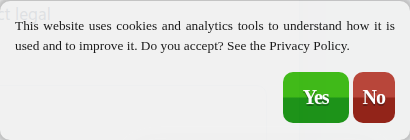
Live public Hitsteps website, English, 8 November 2026. This is the real visitor popup, not a screenshot of your settings or proof of your site's consent configuration. Popup text and button labels can differ by website.
B. Exclude your own browser
- In the browser you use to visit your website, open Settings → Site Settings → Advanced settings.
- Find Exclude this browser on your domain. The domain in the heading should be the website you intend to exclude.
- Select Open my website. This opens your website and lets its tracking code save the exclusion cookie on your own domain. Allow that page to finish loading.
- Open a normal page on that website in the same browser and check that a new test visit is no longer added. Allow for the report's normal update interval. Old visits remain in history.
- Repeat in each browser profile and device that you use. An exclusion in your desktop browser does not automatically exclude your phone.
- To reverse it, return to Advanced settings and choose Count this browser again, then let the website load and verify a new test visit.
This browser exclusion also prevents that browser's visits being recorded or added to heatmaps and hides the website's Hitsteps chat box there. Clearing the website's cookies, using another profile, or using a private window can remove or bypass the saved choice. Safari's storage limits can shorten its lifetime; do not assume an exclusion lasts forever.
The same tab offers Exclude my IP address and do not count my visits and the older Exclude me using the cookie method. Use this if your IP address changes frequently. The recommended website-domain browser method is the first choice for your own browser. Use the IP workflow below for a reviewed fixed address or network. The older cookie method depends on browser cookie access; confirm it works in the browser you actually use rather than assuming it covers all devices.
C. Exclude future visits from an IP address or network
- Open Settings → Exclude Visitors and review the existing Blocked IP entries first.
- Select Block New IP. In the dialog, check Visitor IP, enter the intended address and select Block. Confirm the entry appears in the list.
- Alternatively, open a relevant visitor card's Open visitor controls menu and choose Exclude future visits from this IP or Exclude future visits from this network, as shown. Read the confirmation before selecting Exclude future visits.
- Check the displayed scope. A masked IPv4 network or IPv6 network can include several people. Shared offices, VPNs and reassigned addresses can also include legitimate visitors.
- Test a new visit from the intended source. Previously collected visits and historical totals should not be treated as erased.
- To stop excluding that source, return to Exclude Visitors, find the matching entry, and select Delete for that exclusion. Deleting the rule does not reconstruct visits missed while it was active.
Prefer the scope supplied by the visitor control when working from an existing visitor. Do not paste arbitrary network syntax into the older Block New IP dialog; the separate recording IP field has its own documented network format.
For Exclude Countries, select only the countries you intend to exclude, then select Save. Review the selection before saving: Select all affects the whole list. Country exclusions are collection filters, not a way to change the location shown on a visit or to deny access to your website.
D. Hide and restore a visitor
- Open Visitors → Recent Visitors, locate the intended visitor, and open Open visitor controls.
- Choose Hide from web visitor lists.
- Read the confirmation: hiding changes shared visitor-list visibility. Select Hide visitor only if that is your intention.
- Open Settings → Hidden visitors to review the hidden entry.
- Choose Restore on the matching row to show it in visitor lists again. Return to Recent Visitors and check the appropriate period and filters.
Hiding is reversible. It leaves historical analytics and report totals unchanged and does not erase a person's information. It is not equivalent to excluding future collection, blocking access to your site, or fulfilling an erasure request.
E. Review bot and hosting filters
- Open Visitors → Spam/Bots Protection and select the period you want to inspect.
- Read the blocked-hit report as detected bot/spam activity, not as a census of every automated request to your website.
- Open Settings → Site Settings → Advanced settings and review Enforce Anti-bot & Anti-spam analytics filtering. When enabled, detected bot/spam traffic is filtered from analytics.
- Review Block visits from hosting/datacenter providers separately. This is a broader network classification filter and is off by default in the described control. A person using a VPN can be classified as hosting traffic.
- If a change is justified, save it and compare later visits with a suitable earlier period. Keep the setting change in your interpretation of the totals.
These filters change what Hitsteps counts. They do not install a firewall or stop a browser, crawler or attacker from reaching your website. Use your website's own access controls for that purpose.
F. Review Experience privacy and masking, when available
- Open Experience → Settings. If you see an access or service-unavailable message, follow that message rather than changing unrelated consent settings to get around it.
- Under Privacy & masking, review Text privacy. Start with Protected, which masks text. Flexible makes ordinary text readable while masking recognized emails and long phone- or card-like numbers. Uncover can show personal text, including emails, and is intended only for pages without personal text. Password and payment fields remain protected by the recorder's masking rules.
- Choose Text rendering if needed. Fast masking and Pixel masking change how masked words are drawn. Pixel masking keeps word widths more faithful; it does not authorize revealing more text.
- Add sensitive page areas to Mask elements, one CSS selector per line, for example
.customer-nameor#account. Use More masking lists → Always mask these elements if you need a separate list. Explicit mask lists override visible-text exceptions. - Keep Visible text exceptions narrow. A public product heading can be an exception; a heading that greets a signed-in person by name should not be. Selectors can match more elements after a website redesign, so retest when markup changes.
- Leave Respect Do Not Track enabled unless your approved setup requires another choice. This recording control is distinct from the standard analytics DNT setting.
- Use Excluded IP addresses for recording-specific exclusions. This field accepts one address or network per line, such as the documentation examples
203.0.113.7or203.0.113.0/24. - Under Pages & interactions, review Include pages and Exclude pages. Paths start with
/;/account/*is an example for private pages. Exclusions win over includes. These rules govern recordings, not ordinary analytics or access to the page. - Review Form interactions and the separate Form tracking control if shown. Form interactions governs typing and choices in recordings and is also needed for form analytics. The text still follows your masking settings. Do not confuse either control with the standard GDPR-tab identity capture checkbox.
- Review diagnostic collection too. Console messages can contain information your website writes into its logs; masking visible page text does not make arbitrary application log messages safe. See Error tracking before increasing diagnostic detail.
- Save the settings, then record a permitted test journey with fictional text. Inspect the replay for readable public text, masked private areas and skipped paths before relying on the configuration. Masking is applied during capture; a later setting change does not retroactively scrub an older recording.
If Do not record this browser is available, it saves a browser-specific recording opt-out. Its accompanying message explains that regular analytics can still count the visit. This is narrower than Exclude this browser on your domain, which excludes the browser's visits from the wider tracking workflow. Respect the scope shown beside the control.
G. Review retention, exports and deletion
Recording retention
- In available Experience → Settings, review Recording retention. The interface defines 30, 90 and 365-day choices, but the permitted effective period can be limited for your website. Use the value the current screen accepts and shows after saving.
- Review Stored recording limit as well. A full stored limit can pause admission of new visits. A limit of 0 means no configured stored-count limit; retention still applies. It does not mean records are kept forever.
- If you intentionally need to delete one recording, open that recording's row actions and choose Delete recording, then read and confirm the dialog. Its share links are revoked as part of that operation.
- If you intentionally need to delete all existing recordings for the selected website, open Delete saved recordings, read the scope and count, tick I understand that these recordings cannot be recovered, then select Delete all saved recordings. Deletion runs in the background. Keep the queued status distinct from completed removal and recheck the recordings list later.
- New recordings can continue according to your collection settings while old recordings are being deleted. If your intention is also to stop new recording, review collection separately before deleting. Removing a bookmark does not delete the recording or free a stored recording slot.
Visitor Custom Dimension data
- Open the intended visitor's Visitor controls on the correct website. Where the scoped privacy actions are available, select Export Custom Dimension data first if you need a copy.
- Save the downloaded JSON securely. An export can be split into bounded parts; if the interface says it has paused, select Export again to resume the same sequence. A report CSV is not automatically a complete personal-data export.
- If erasure is intended and authorized, select Erase Custom Dimension data and read its scope. This removes normalized Custom Actions, Custom Dimension values and visitor-addressable Segment, Funnel and Actions Explorer state.
- Confirm with Erase scoped data only after checking the visitor and scope. It does not erase legacy visits, chat, notes, IP data or session replay. Keep any pending or unavailable response separate from successful erasure.
- For a broader access or deletion request, contact support through the website owner and identify the relevant website and data categories. Do not repeatedly erase other records in an attempt to make the request complete.
Whole website deletion
Site Settings also has Delete this website for an authorized owner/administrator. This is a destructive removal of the selected website and its statistical information, not a visitor filter. Export any information you are entitled to keep, verify the website, read the confirmation and proceed only if whole-website deletion is your actual intention. Do not use it as a troubleshooting reset or assume it also closes your account, cancels billing, or erases downloaded files and other parties' copies. Ask support to clarify the scope for an account closure or a specific data request.
H. Visitor opt-out and data requests
- A visitor can open the public tracking opt-out page in the browser they want to opt out.
- Read the form, complete any verification it requires, and select Submit. The page should report You are opted out from our tracking after a successful opt-out.
- Keep the saved opt-out cookie. Clearing cookies can erase the choice; repeat on other browsers and devices. Browser restrictions can affect whether a cookie is available during tracking, so test the actual website/browser combination rather than promising universal coverage.
- If the visitor later wants tracking again, they can use the opt-in action offered on that page. Opting in does not recover visits that were never collected.
- An access or erasure request is separate from stopping future tracking. As the privacy policy explains, visitors should first contact the website owner where their information was collected. The policy gives the further Hitsteps contact route if that owner does not reply within seven days.
Worked example #
Imagine a fictional site, your-store.example. Its owner wants to exclude an office browser, avoid recording the account area, and understand why a visitor's name is missing. These are instructions for a controlled test, not a report of real traffic.
- The owner opens Advanced settings in the office browser and selects Open my website. After the site loads, a later visit from that browser should not become a new counted visit, recording or heatmap sample. Earlier history remains.
- On an Experience-enabled test website, the owner uses Protected text privacy and adds
/account/*to Exclude pages. A permitted test visit to/products/examplecan be recorded with masked text;/account/profileshould not be recorded. Ordinary pageview analytics has separate controls. - In a separate clean test browser, a visitor selects No on the identity popup. The owner may still see basic analytics, but should not expect the identity enrichment supplied only after consent. A missing name is therefore not proof the tracker is broken.
- If the owner hides an old test visitor, that visitor should disappear from shared visitor lists while historical totals remain unchanged. Restoring the visitor reverses the list choice.
If the expected scope is wrong, stop and review the relevant control before making another change. A recording that reveals private text calls for reviewing and containing that recording, not increasing sampling to collect more examples.
Controls and metrics #
| Control or term | Meaning and practical limit |
|---|---|
| Always show the GDPR compliance popup to request full, more accurate tracking permission | Requests identity permission as the visitor arrives. Basic analytics can still be collected before an answer or after No. |
| Show the GDPR compliance popup only when personally identifiable information is being sent | Requests permission when the tracker encounters identity-related activity, such as a login or a relevant form. Do not assume an immediate popup on every ordinary pageview. |
| Do not show GDPR popup: track user-identifiable information at your own risk | Suppresses Hitsteps' popup while allowing identity collection under the selected setup. The UI requires an additional risk acknowledgment. It does not obtain permission through another system for you. |
| Do not show GDPR popup: do not track user-identifiable information | Suppresses the popup and uses reduced identity behavior. It does not mean no analytics or no browser storage of any kind. |
| GDPR Popup Text / Yes Button Label / No Button Label | Visitor-facing copy for the popup modes. Editing wording does not change the collection scope of the selected mode. |
| Form identity tracking | Attaches available names, emails and phone numbers to visitor profiles with the required consent. It is different from aggregate form analytics and replay form interactions. |
| Cross-device identity | Can link visits through an identifier supplied by the tracked website, subject to consent and integration. It does not identify every anonymous visitor across devices. |
| IP anonymization | Reduces stored address precision. A displayed network is not a unique person's full address; do not treat it as proof that every other data category has been erased. |
| Exclude this browser | A cookie-backed choice for the particular browser/profile and tracked domain. It does not travel automatically to other browsers. |
| Blocked IP / Date Added / Delete | The exclusion rule, its recorded addition date, and removal of that rule. Delete here removes the rule, not historical visitor data. |
| Hide from web visitor lists / Restore | Reversible list presentation. Historical analytics and report totals remain. |
| Spam/Bots Protection blocked hits | Requests identified as bots/spam by the available filtering. They are not the same as accepted human visits or a complete server-access log. |
| Hosting/data-center classification | A network signal that may include real people using a VPN. It is not proof of abuse. |
| Tor Browser label | A limited legacy browser-and-screen heuristic. It is not a live Tor exit-node lookup, complete Tor audience measurement or proof of identity or motive. |
| Ad-block detection | An estimate from signals on visits Hitsteps can observe. A blocker that prevents Hitsteps from loading can leave no reportable signal. |
| Text privacy | Controls readable text in new recordings. Explicit masking and sensitive-field protection still constrain visible-text exceptions. |
| Text rendering | Changes the appearance of masking, not the level of personal text permitted. |
| Include pages / Exclude pages | Recording path rules; exclusions take precedence. They do not change access to the website. |
| Recording retention | Automatic removal period for recordings, subject to the website's effective limits. It is separate from standard visitor-history retention. |
| Stored recording limit | Count-based storage/admission limit. A zero value removes that configured count limit, not retention. |
| Export Custom Dimension data / Erase Custom Dimension data | Narrow visitor-scoped data actions. Neither label promises an export or erasure of every Hitsteps feature. |
Problems and fixes #
| Problem | What to check and do |
|---|---|
| No popup appears | Review the selected mode, an earlier saved choice and the DNT setting. Conditional popup mode does not prompt on every page. Also check whether the tracker actually loads and whether your consent platform delays it. Test your own site in a fresh browser context. |
| Visits remain after someone selects No | Distinguish basic analytics from identity enrichment and recording consent. Review which fields are present; do not diagnose the setting from the total alone. If your requirement is no pre-consent collection, test your script-loading rule. |
| Your own visits still appear | Check the selected domain, browser/profile, cookie storage and whether the tracker loaded on the page opened by Open my website. Repeat on each device. A private window has separate storage; an IP change can defeat an old address rule. |
| Totals did not fall after hiding or excluding a visitor | Hiding affects lists; future exclusion affects subsequent collection. Neither deletes old report totals. Use the appropriate scoped erasure or support process for a deletion request. |
| Good visits disappear after enabling hosting or country filtering | Review the exact rule and network/country scope. Hosting classification can include VPN users and geolocation can be approximate. Reverse only the rule you intend to change and test new visits. Past missed visits cannot be rebuilt by removing a rule. |
| A name is absent, or an IP is shown as a network | Consent, form identity capture and address anonymization affect detail. Do not weaken privacy settings solely to make a visitor card more detailed. Review the permitted configuration first. |
| Pageviews exist but recordings do not | Check Experience access, collection state, consent, DNT, recording browser/IP/path exclusions, sampling and stored limits. Recordings are a separate eligible subset, so their count need not match all analytics visits. |
| Counts differ across tools, or a secure page is missing | Check the actual HTTPS snippet, page installation, script and network errors, consent/loading rules, blockers, exclusions, bot filters, date range and timezone. An HTTPS website still needs a working allowed tracker. A blocked request cannot be reconstructed from an ad-block estimate. Do not bypass a visitor's privacy choice to repair a count difference. |
Access, privacy and limits #
Standard analytics can describe pages, visits, actions, traffic sources and technical context. Identity enrichment depends on website integration, settings and consent. Forms, recordings, chat, widgets, commerce and external integrations can involve different data and access rules. Do not treat one checkbox as a master privacy switch for all of them.
Masking in a recording does not remove personal text from your site's HTML, URLs, application logs, custom fields or exports. Keep secrets and unnecessary personal information out of those inputs too. For pages containing private information, consider excluding the page from recording as well as masking its sensitive elements. Verify a safe sample after site changes.
Website data is scoped to the authorized account and selected website. Use the permissions actually granted to your dashboard user. Hidden visitor management and data actions require management permission; guests and public/shared report views are not equivalent to an authorized management session. Account-wide anonymization and whole-website deletion have additional administrator restrictions.
The current privacy policy says visitor-level analytics follows the account plan's retention window. This chapter does not assign an unverified number of days to each plan or promise that every feature shares one schedule. Experience's recording retention is a separate setting with effective website limits. Ask support about the relevant data category and plan if the displayed information does not answer your retention question. Downloaded exports and copies held by connected tools require their own access and retention management.
IP anonymization, the popup, opt-out and masking are technical controls. None is a legal assurance, a promise of zero personal data, or a claim that Hitsteps is exempt from consent requirements. The published CNIL self-assessment explicitly describes limits and does not claim an exemption. Use the current privacy policy, terms and subprocessor list when documenting your own setup. DPA forms are available on request as described in the privacy policy.
Tor and ad-block labels describe limited observed signals. Read the Tor detection limits and ad-block detection limits. Neither reveals visitors whose analytics requests never arrive, nor justifies treating privacy-tool use alone as abuse.
Last checked #
Checked 8 November 2026 using product documentation and source, with public pages and safe sample screens where available. Account-specific access, provider controls and effective limits can differ; use the current message shown for your website. Examples are illustrative.