What you will learn #
Godview brings a site's current activity, useful findings, relationships between visitors and site content, and historical patterns into one visual workspace. Use Today to decide what deserves attention, Globe to explore activity geographically and in context, Connections to inspect relationships and change over time, and Lists to search and open individual groups. This chapter explains how to read those views and their controls.
Before you begin #
Availability: This feature is being opened gradually. An eligible plan or trial does not by itself enable it for every website. The following instructions apply when your website has access; follow its displayed access message.
- Sign in to Hitsteps and open a site that your account is allowed to view. Your account role, site access, current feature entitlement, rollout state, and plan may limit access or detail. The customer view can show an access, trial, expiry, or upgrade screen instead of the workspace.
- Godview is most useful after the Hitsteps tracking code is installed and has collected visits. New or paused sites can show setup guidance, incomplete data, or no results.
- Search Console, goals, chat, commerce, campaign, and other panels depend on those services being connected, configured, included in your access, and populated. Their presence in a menu does not mean they are ready for your site.
- The browser's WebGL support is needed for the Globe. If it cannot start, use Today, Connections, and Lists while you check browser or graphics support.
- The public demo uses fictional data. Customer Godview shows only the websites and controls your account is authorized to access.
Step by step #
End-to-end: read a finding and investigate it
- Open Today and read the site's current state first. If you see a setup or paused message, follow that site's dashboard setup or ask its owner; do not treat an empty finding list as proof that tracking works.
- Check Your tracking when the control is shown. It opens the tracking-health view. Use its status to diagnose collection before interpreting a quiet report.
- Read Right now and the live activity ticker. The online pill is a current count, not the total visits for your date range. The ticker is a stream of recent events; use its pause control when you need time to read and resume when ready.
- Review the Since summary and Your story card for historical context. A comparison, date window, timezone, or sample label belongs to that specific value. Do not compare counts from different windows as if they covered the same period.
- Read One thing to do and the additional finding cards. Each card may show a topic, time window, comparison, and suggested action. Show me opens the related visitor, page, source, or other available record. Why am I seeing this? opens the evidence and any comparison or rule the card provides.
- Use the card action only if it matches your goal. Snooze for a day hides that card temporarily. Dismiss removes it from the current view; some recurring money, friction, or trust findings can return after 30 days if they still apply. Dismissing a finding does not change tracking or the underlying site data.
- To see the spatial view, select Globe. Choose a finding in What matters now to highlight its related item on the globe. Select an item on the globe to open its inspector. Use the home control to return to the overview, and the fly control to return to a current selection.
- Select Connections to explore the relationship graph, visitor path flow, or historical Story timeline. In Flow, select a node to inspect it. In Story, select a plotted item when one is interactive to open its details.
- Select Lists to browse a topic. Use its search box to narrow visible rows by the item's displayed name or supporting text. Choose a row to open its inspector. A group bar compares rows within that group; it is not a cross-topic scale.
- Press Escape to close an open inspector or menu. Press ? for the short in-app guide, or use More → Guide. Press 1, 2, 3, or 4 to switch the four main views when focus is not in a text field or on the globe canvas.
Safe worked example
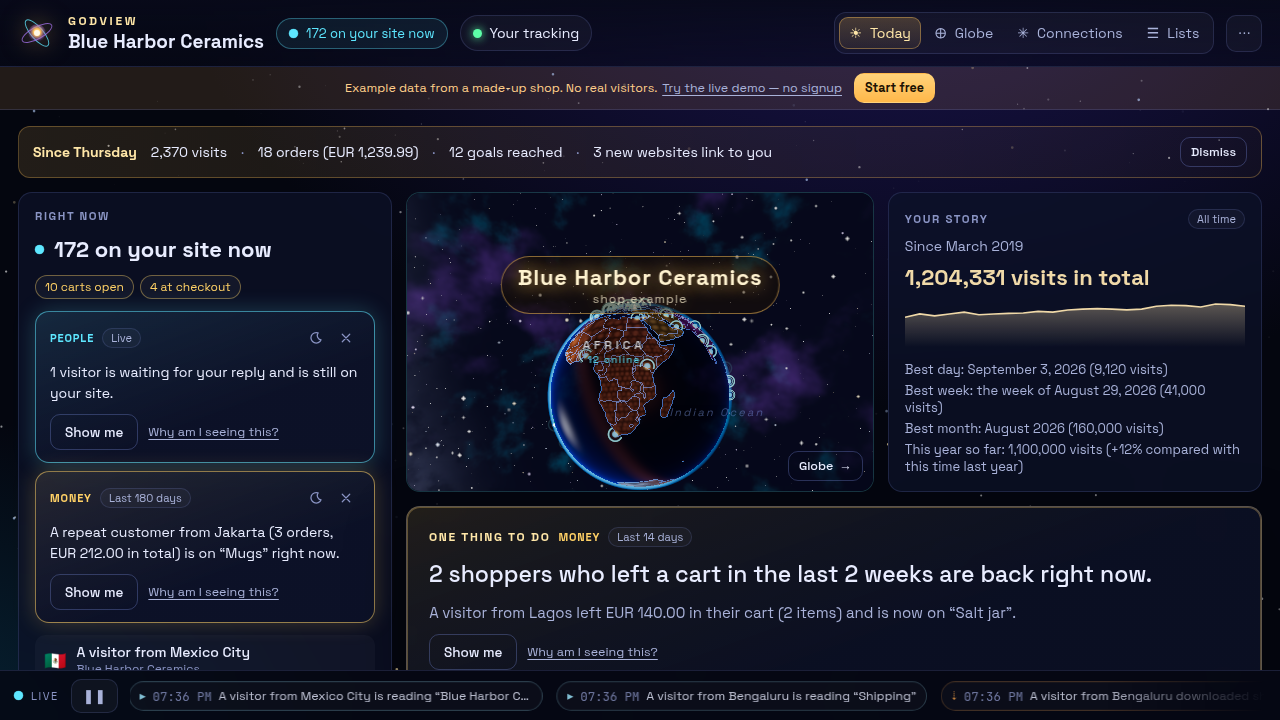
On the public demo, the made-up Blue Harbor Ceramics shop may show visitors browsing “Blue mug,” a source such as mail.example, and an order in EUR. Open Today, choose Show me on a finding, then use Lists or Connections to follow the related item. The expected result is a selected example record and whatever details the demo supplies. These numbers and events are generated examples: they are not a benchmark, a customer result, or a promise about your account.
Views and interpretation
Today
- Right now summarizes current visitors and may surface live situations, carts, checkout activity, or a waiting chat when those features and data are available.
- Since summarizes changes since a previous visit. It can include visits, orders, goals, or referral changes. Its date label is part of the meaning.
- Your story gives a longer view such as total visits and best day, week, or month. The app may show a comparison with an earlier period.
- One thing to do puts one finding first. More cards add distinct findings, setup guidance, or upcoming items. Some cards offer Show me, Why am I seeing this?, an action link, snooze, or dismiss.
- Explore links to related product areas when they are available for the site.
- The bottom ticker shows recent activity and can be paused or resumed. Selecting an event can open its related record.
Globe
The customer Globe is an interactive Earth with the selected website at its center. It combines place and visitor context with the What matters now rail. Selecting a rail item focuses its related item; selecting a visible point or label opens an inspector. The home icon frames the overall view; the fly icon returns to the current selection when one exists.
Drag to rotate; use the wheel or pinch to zoom. A point's label or hover card identifies what the current map element represents. A marker can be a visitor, place, page, source, goal, order, or another available item, depending on collected data and enabled integrations. The view may simplify crowded areas; a missing label at the current zoom does not prove that there is no activity. On smaller screens, controls may be icon-only and tooltips carry their names.
Treat map proximity and drawn connections as a way to explore records, not evidence that one visitor caused another event or that a location is exact. Location is approximate and depends on the underlying location signal. The accessible Lists view provides another route to records.
Connections
The three tabs answer different questions:
- Constellation groups related visitor, page, source, and feature records around the site. Select an interactive node to inspect it. It is a relationship overview, not a causal diagram.
- Flow shows visitor movement from source to landing page and an outcome category such as ordered, converted, chatted, left, explored, or single-page visit. Counts describe visitors represented in that flow; they do not, by themselves, establish that a source caused an outcome. The busiest landing pages may be named individually while the remaining pages are grouped together.
- Story plots historical activity, including visits and available events such as search clicks, orders, annotations, first-seen items, or outages. The chart is limited to the shorter of the site's allowed history and the view's 120-day maximum. Some comparisons show the last seven days against the seven days before; first-seen highlights use a 30-day window. Dates use the site's account time. Bot activity may be identified separately where shown.
Lists
Lists provide searchable groups, state, time-window labels, and pinned findings for a selected topic. Current customer topics are determined by the data and integrations on the site. They can include:
- Right now and Visitors
- Pages, Sources (the on-screen label may be “Where they come from”), Geography (sometimes “Places”), and Search (sometimes “Google”)
- Campaigns, Technology (sometimes “Devices”), Goals, Actions, and Segments (sometimes “Groups”)
- Chat, Commerce (sometimes “Sales”), Performance (sometimes “Speed & uptime”), and Chronicle (sometimes “Story”)
Some topics may be hidden, locked, collecting data, paused, or not yet set up. Search matches the visible entity name and supporting text in the chosen topic; it does not search all Godview or change the date window. The Signals tracking-health panel is not a normal searchable entity list. Use row counts and bars only within their displayed group. Counts from different topics can represent different units or periods.
Worked example #
Fictional demo: Blue Harbor Ceramics in the public Godview demo has invented visitors and shop activity. Start on Today, select a finding, read Why am I seeing this?, and use its available view or report link. Then compare Globe, Connections and Lists. Demo activity illustrates the interface; it is not a customer result or proof of access on your website.
Controls and metrics #
| Control or label | What it does | How to read it |
|---|---|---|
| Today / Globe / Connections / Lists | Changes the main view | These are four presentations of the selected site's data, not four separate sites. |
| Site selector | Opens the selected site's view | Only appears when more than one permitted site is available. |
| Online pill / Right now | Shows the current online count | A current state count, distinct from visits in a historical window. |
| Your tracking | Opens the tracking-health view | Read the displayed status before diagnosing missing activity. |
| Since | Summarizes activity since the previous visit | The displayed starting date and metric unit govern the comparison. |
| Window badge | Labels the period used by a card, list, or chart | Examples include today, a number of days, last 7 days, or an explicitly marked sample. |
| Show me | Navigates to the item behind a finding | Opens a visitor, entity, or topic and may select it on another view. |
| Why am I seeing this? | Opens finding evidence | Shows the window and available baseline, evidence row count, sample note, or rule. |
| Snooze for a day / Dismiss | Hides a finding | Changes its presentation in this browser/site context, not the source event. |
| Home / Fly | Reframes the Globe | Home clears the map focus; Fly returns to a selected item. |
| Constellation / Flow / Story | Changes the Connections visualization | The active tab is remembered in the browser. |
| Topic / Search | Chooses a list and filters its rows | Search is limited to visible names/supporting text for that topic. |
| Inspector | Shows a selected item's details and links | Available fields vary by item, role, plan, and collected data. Visitor detail can include a journey and, when permitted, chat, goals, or orders. |
| More → Display | Opens visual preferences | Motion: Calm, Standard, Cinematic. Quality: Auto, Lite, Full. Hide names and amounts is a privacy aid for an on-screen display. |
More → Guide or ? |
Opens the short in-app help dialog | Explains Today, Globe, Connections, Lists, and cards. |
1-4, Escape |
Keyboard shortcuts | Switches the four views or closes an open item/menu. Do not use while typing in a field. |
| Live ticker pause/resume | Stops or restarts ticker movement | Pausing is for reading; it does not pause tracking. |
| Visits | Count of visits for the labeled window | A visit is not the same thing as a unique visitor. |
| Visitors / online | Visitor count for the labeled scope | Use the nearby window or “right now” label to distinguish history from current presence. |
| Pageviews | Views of pages during the labeled window | Not equivalent to visits or visitors. |
| Orders / revenue | Orders or order value when Commerce data is available | Read currency and period; Godview does not make unlike currencies directly comparable. |
| Goals / conversions | Configured goals or conversion counts where available | These depend on configured goals and their displayed window. |
| Source / landing / outcome | Flow dimensions | A source is where the visit came from; landing is its entry page; the outcome is the observed end category. Flow is descriptive, not proof of causation. |
| Search clicks | Search-console click count in Story when available | Requires a connected Search Console property and a populated period. |
| Bar length in a list group | Relative value among rows in that same group | Not a common scale across topics or groups. |
Problems and fixes #
- Godview is missing or shows an access page: Confirm you selected the right site and that your account has permission. Check the entitlement, trial, expiry, or rollout message with the site owner. Availability and plan gate must be verified for your account; the public demo does not grant access.
- The view says tracking has not started or has no visits: Check the tracking code and site selection in the dashboard. Visit the tracked site after installation and allow collection to appear. Do not treat the fictional demo as a live tracking check.
- A topic is empty, locked, or marked Collecting: Check the topic's state, connected service, setup card, and time window. Search Console, goals, campaigns, chat, Commerce, and other integrations do not fill themselves just because their topic is listed.
- A number looks smaller than another screen: Compare the labels, unit, timezone, date range, freshness/sample note, and any plan-limited history. Online people, visits, visitors, pageviews, orders, and conversions are different measures.
- A card disappears: Check whether it was snoozed or dismissed. Reopen the relevant topic or wait for a still-true recurring finding to return; use the card's evidence before acting.
- Globe is blank or slow: Try Auto or Lite under More → Display, allow the initial load to finish, and check browser graphics/WebGL support. Continue in Lists if the graphics view cannot start.
- The Globe label or marker is hard to find: Zoom in, use a Lists topic, or select a finding in What matters now. Crowded views can simplify what they draw.
- Search returns nothing: Clear the search text, confirm the correct topic, and try a shorter part of the visible name. Search does not search other topics.
- Story shows a shorter period than expected: The available history is plan/entitlement-limited and the customer chart has a 120-day maximum. Read the axis/window label and compare only matching dates.
- Visitor details are incomplete: Available fields depend on tracking, enabled products, permissions, and the record. A blank optional section is not evidence that no event occurred elsewhere.
- Names or values remain visible in a shared screen: Turn on More → Display → Hide names and amounts before presenting the screen. This is a local visual setting, not a replacement for account permissions or data-privacy controls.
Access, privacy and limits #
- Godview reads the selected Hitsteps site's collected records and connected service data. Its customer entry is entitlement- and rollout-gated; access is being opened gradually and depends on your account and website. Treat any trial/upgrade/access message as authoritative for the account in front of you.
- Your role and site permissions determine whether you can open the site and which details/actions are available. Some chat details and other records are permission- or plan-limited. Ask the account owner when a section is unavailable.
- Display's Hide names and amounts reduces exposure in this Godview browser view. It is not a site-wide privacy choice, permission change, export redaction, or promise that values are absent from other product pages.
- Globe locations are approximate. A map, chart, or connection should not be treated as proof of a person's exact location or causation.
- History is bounded by the account's applicable data entitlement and the Story view's maximum of 120 days. The window visible on each component takes precedence. Where a value is marked sample, partial, or stale, keep that qualification with it.
- The public demo's synthetic records do not represent real visitors or an account's results. Do not copy its names, counts, order values, or findings as customer evidence.
- Do not share an inspector, screenshot, or presentation containing identifiable visitor names, page paths, conversations, or monetary details unless the audience is authorized. Use Display privacy and the account's approved access controls.
Last checked #
Checked 8 November 2026 using product documentation and source, with public pages and safe sample screens where available. Account-specific access, provider controls and effective limits can differ; use the current message shown for your website. Examples are illustrative.