New connections need time. After you connect a Google service, Site Kit can show a gathering data notice for up to 48 hours while data arrives from Search Console, and Analytics can need 24 to 48 hours before new traffic appears. On a new install that looks like broken tracking. Wait two days with normal traffic, then check again. (dashboard guide)
Site Kit troubleshooting
Site Kit stopped showing data? Here is how to fix it
An empty Site Kit dashboard is worrying, but your Google data is usually still there. What stops is the link between WordPress and Google, and the cause is often a sign in session, a permission change, a cache rule or a blocked REST API route on your own site.
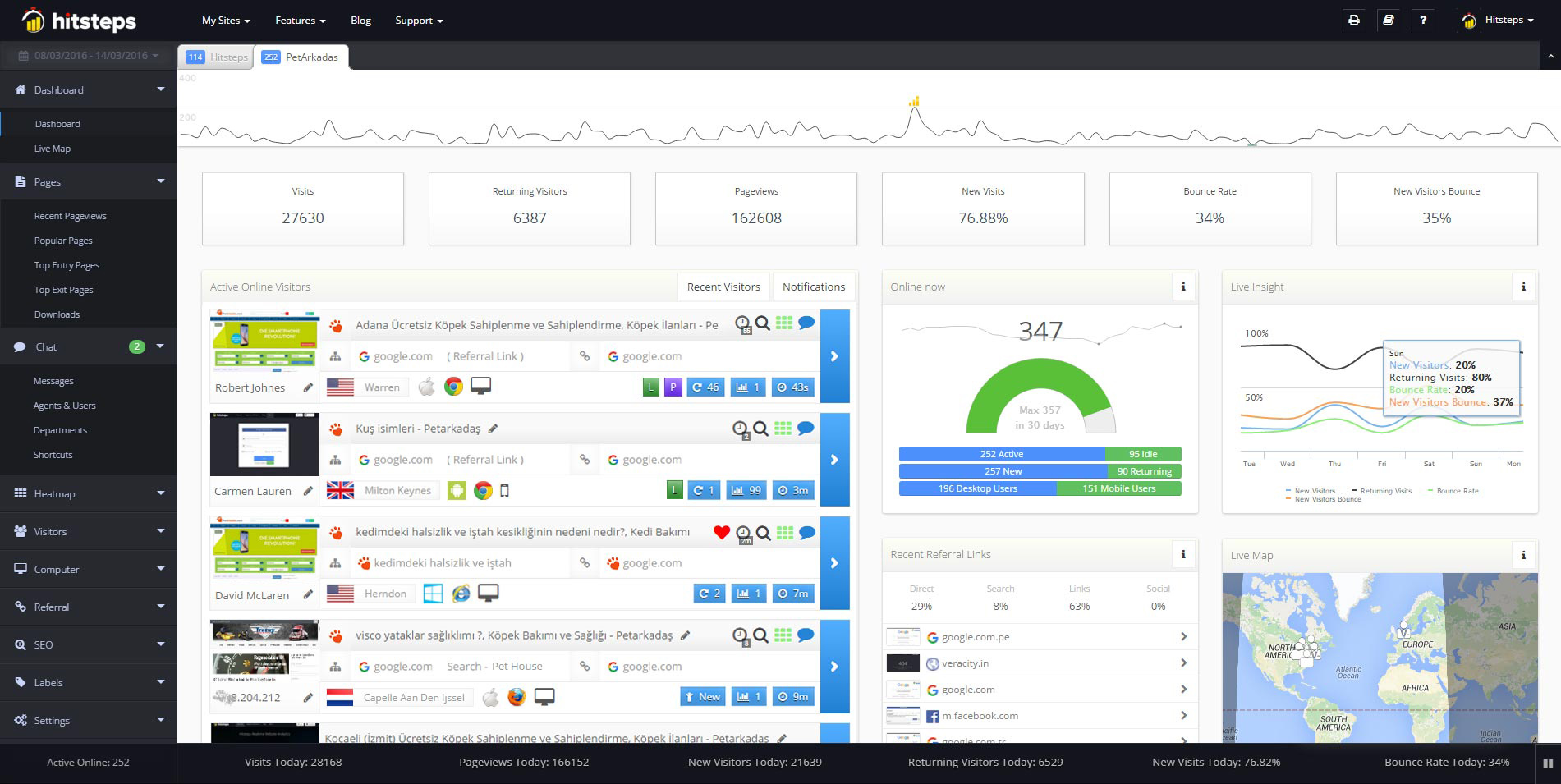
The checks below fix most cases. They come from the official Site Kit guides and troubleshooting pages from Google. If you would rather stop depending on a Google connection in WordPress, we also compare Site Kit with Hitsteps, a hosted alternative with a live visitor view.
First, rule out two false alarms
Your own visits are hidden. Site Kit shows Google reports, not a live view of your own test visit. To check tracking, open your site in a private window while logged out and look at the Google Analytics real time report. A visit while logged in can be filtered out. (Analytics guide)
How to fix Site Kit when it shows no data or no access
Work through these in order. After each change, clear caches, visit your site in a private window while logged out, and allow time for data to arrive.
- Make the site public and healthy. Site Kit needs a publicly accessible production site with no password lock, no maintenance mode and no coming soon screen. It needs WordPress 5.2 or newer and PHP 7.4 or newer. Open Tools, Site Health in WordPress admin and confirm the REST API is available. (installation requirements)
- Sign in again and grant access. Open Site Kit, Dashboard and choose Sign In with Google with an administrator account that has access to the connected Google services. Tick all permission boxes so WordPress can read data on your behalf. If access was removed in Google account settings, use Redo the plugin setup to connect again. (setup guide)
- Unblock the REST API. Site Kit uses the WordPress REST API to talk to Google services. Security plugins, firewalls and optimization plugins can block it and show errors such as Only authenticated users can access the REST API or Site Kit cannot access the REST API. Allow Site Kit routes, switch off REST API blocking features, set permalinks to anything except Plain, then test again. (known limitations)
- Check Analytics and Search Console separately. If Analytics shows gathering data, confirm the correct property and web data stream is still selected under Site Kit, Settings, Connected Services, Analytics, Edit. If Search Console shows gathering data, wait up to 48 hours after a fresh connection. After three days without traffic, Analytics switches to a zero data state, which means tracking works but no visits arrived. (Analytics troubleshooting)
- Run a conflict test. The Health Check and Troubleshooting plugin turns off other plugins and switches to a default theme, only for your own login. Turn Site Kit back on first, then turn on the other plugins one at a time, and note when data stops. Caching and consent plugins are common causes.
Still no data? Ask in the Site Kit support forum. The Site Kit team replies there. All steps in one place: fix common issues guide.
Why a Google connection can break reporting
Site Kit by Google is the official WordPress plugin from Google that connects Analytics, Search Console, AdSense and other Google services and shows their reports in WordPress admin. That is its strength: one dashboard for official Google data without leaving WordPress.
It also means reporting depends on that live link. A revoked Google permission, an expired sign in session, a staging URL, a blocked REST API route or a changed Analytics data stream can stop new numbers or show no access errors, even when your site itself works fine. Each administrator connects a personal Google account, so access can differ per user.
Product proof
Understand your visitors. Take action with confidence.
Use it when you need live visitor context, practical installation routes, and action tools around the traffic you already have.
Maintained for real websites
Hitsteps has kept evolving across website platforms, browser changes, analytics shifts, and store workflows.
Works where your site already lives
WordPress, Shopify, Wix, Google Tag Manager, HTML, CMS, commerce, browser, and desktop setup paths are documented from one hub.
From tracking hit to next action
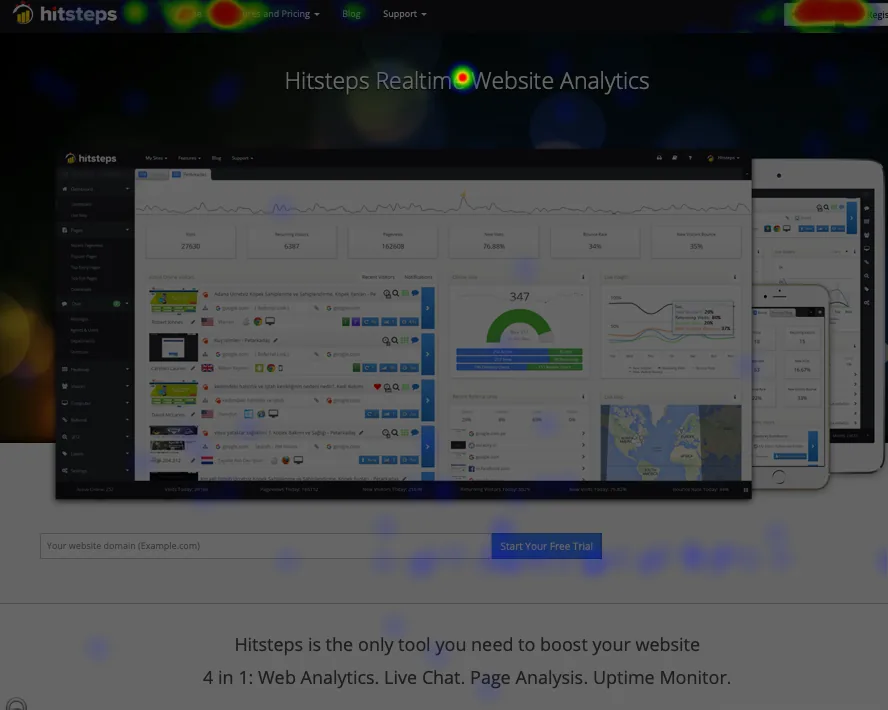
Live dashboard, visitor profiles, heatmaps, chat, Segments, uptime, reports, and alerts stay connected after tracking is installed.


Site Kit vs Hitsteps at a glance
| Question | Site Kit by Google | Hitsteps |
|---|---|---|
| Where are reports stored? | In your Google accounts. WordPress only displays them. | In your Hitsteps account. The WordPress plugin adds the tracking code, and your visit history is not kept in your WordPress database. |
| How do I connect? | Sign In with Google, verify ownership, grant permissions for each service. | The tracking script loads from Hitsteps and sends each visit there. No file or REST API route on your server takes part. |
| What happens when the link breaks? | Gathering data notices for up to 48 hours, or no access errors until you sign in again or redo setup. | Visits are recorded on Hitsteps servers, so recording does not depend on Google sign in state or REST API rules on your site. |
| Can I watch visitors live? | Real time reports from Analytics where available, with Google processing delays. | Yes, on Free: open an active visit and follow its page path as it happens. |
| Chat and heatmaps? | Not in published Site Kit feature lists (checked 29 October 2026). | Visitor chat from Starter at $4.99 a month. Click heatmaps from Growth at $9.99 a month. |
| What does it cost? | Free plugin. Connected Google services have their own limits. | Free: up to 2,000 pageviews a month, 1 site and 14 days of history. Paid plans from $4.99 a month. New accounts get a 7-day Pro trial, no card needed. |
| Which sites does it work on? | WordPress sites connected to Google. | WordPress, Shopify and any website where you can add a tracking code. |
Site Kit facts checked on 29 October 2026 against installation requirements, Analytics troubleshooting and dashboard guide on sitekit.withgoogle.com and the WordPress.org listing. Site Kit by Google is not affiliated with and does not endorse Hitsteps.
When Site Kit is the better choice
If your team already measures everything in Google Analytics and Search Console and wants those official reports inside WordPress admin, staying with Site Kit makes sense. It is free and built by Google, and it connects Analytics, Search Console and AdSense in one setup. Work through the fixes above and keep your current workflow. (WordPress.org listing)
When Hitsteps is the better fit
Choose Hitsteps if you would rather not depend on a Google sign in for daily stats and want to see visitors as they arrive. Visits are recorded on Hitsteps servers, so a revoked permission or a blocked REST API route on your site does not stop recording. The trade offs: your visit data is stored by Hitsteps rather than in Google, you need an account, and Free has a pageview limit. Like any analytics script, it can still be blocked by ad blockers, so check it the same way: watch your own visit arrive in the live view.
Test Hitsteps next to Site Kit in five minutes
1. Sign in to your Hitsteps account (or create one) and add your website. 2. Install the WordPress plugin and connect it with your site API key, or paste the tracking code into your site. 3. Open your site in a private window and watch your own visit arrive in the live visitor view.
You can keep Site Kit active while you test, because the two tools run separate scripts. The numbers will not match exactly: each tool counts visitors and sessions in its own way.
New accounts get a 7-day Pro trial, no card needed. After the trial, stay on Free with a verified email and a site within the Free limits, or choose a paid plan. Chat starts on Starter; click heatmaps start on Growth.
Comparing other WordPress plugins? Read the Independent Analytics, Koko Analytics and WP Statistics comparisons, or browse all analytics comparisons.
Frequently asked questions
Why is Site Kit stuck on gathering data?
After a fresh connection, Search Console can need up to 48 hours and Analytics 24 to 48 hours before numbers appear. Confirm the site is public, the REST API is available, and the correct Analytics property is selected. After three days without traffic, Analytics shows a zero data state, which means tracking works but no visits arrived. Work through the checks on this page in order.
Why does Site Kit show no access or permission errors?
The Google sign in session expired, permissions were revoked in Google account settings, or the WordPress user lacks access to the connected Google service. Sign in again with an administrator account that has access, tick all permission boxes, or use Redo the plugin setup. Each administrator must connect a personal Google account.
Does Site Kit work on staging or private sites?
No. Site Kit needs a publicly accessible production site with no password lock or maintenance mode, plus an available REST API. Staging URLs and protected sites fail setup or verification. Make the site public first, then connect.
Is there a Site Kit alternative without a Google connection?
Yes. Hitsteps is hosted: its WordPress plugin adds the tracking code and your visits are stored in your Hitsteps account. Free includes a live visitor view for 1 site, up to 2,000 pageviews a month and 14 days of history. Chat starts on Starter and click heatmaps on Growth. If official Google reports inside WordPress matter most, Site Kit remains the better fit.
Can I run Hitsteps and Site Kit at the same time?
Yes. They use separate tracking scripts, so you can keep Site Kit while you compare. The numbers will not match exactly, because each tool counts visitors and sessions in its own way.