Element click reporting
Compare recorded interactions with buttons, links, images, navigation items, and other identifiable elements on a tracked page.
Hitsteps Page Analysis groups tracked clicks by page element so you can compare buttons, links, menus, banners, and dynamic interface controls with the visitor activity around them.
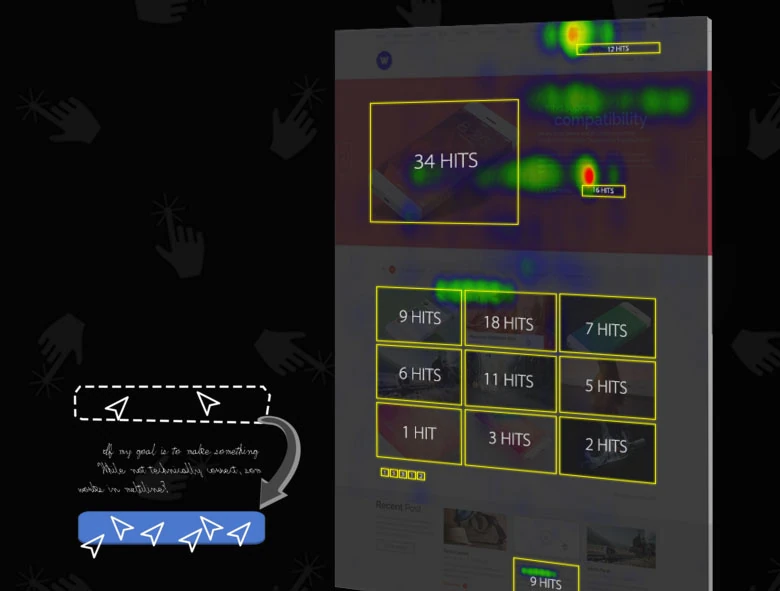
Instead of treating the whole page as one result, inspect the elements people use, ignore, or select unexpectedly and decide what deserves a closer test.
Compare recorded interactions with buttons, links, images, navigation items, and other identifiable elements on a tracked page.
Review supported clicks in menus, overlays, sliders, and AJAX-driven content that may not be visible when the page first loads.
Use the surrounding analytics to investigate which visitors clicked and what tracked pages or actions came before and after.
Use it when you need live visitor context, practical installation routes, and action tools around the traffic you already have.
Hitsteps has kept evolving across website platforms, browser changes, analytics shifts, and store workflows.
WordPress, Shopify, Wix, Google Tag Manager, HTML, CMS, commerce, browser, and desktop setup paths are documented from one hub.
Live dashboard, visitor profiles, heatmaps, chat, Segments, uptime, reports, and alerts stay connected after tracking is installed.

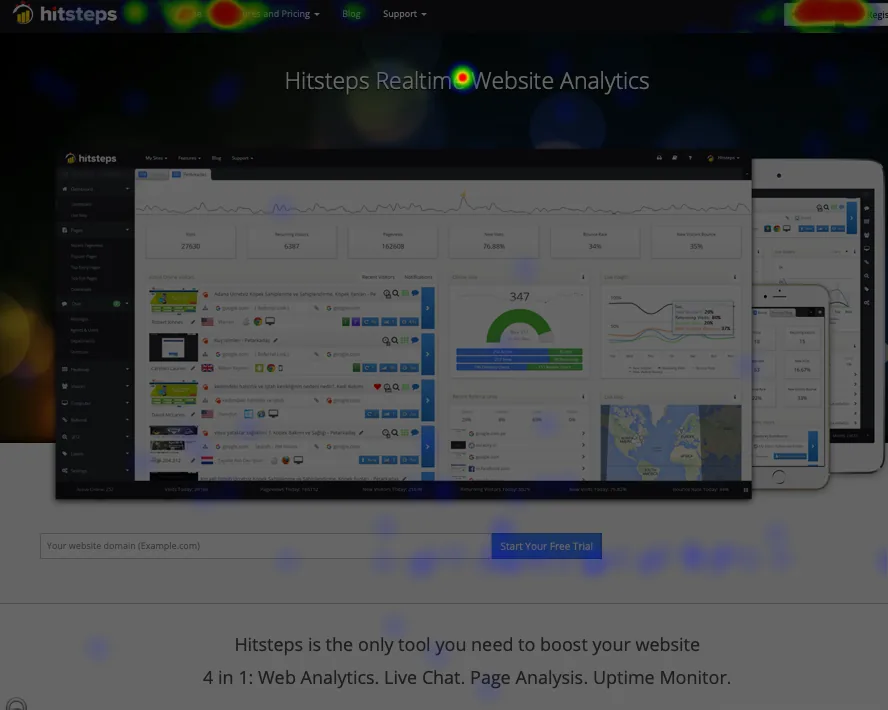

Element click counts can reveal a pattern worth investigating. Combine them with traffic source, device, page path, goals, and direct user feedback before deciding why the pattern occurred.
Start with a clear question, such as whether visitors notice a signup button or use a particular navigation path.
Allow enough relevant traffic to arrive before interpreting small differences, especially on low-volume pages or new elements.
Look for important controls with little activity, competing elements, and non-obvious areas that receive unexpected clicks.
Change the copy, position, hierarchy, or interaction you want to test, then compare a suitable period after release.
Check whether the primary action receives clicks or competes with nearby links and secondary controls.
See which menu options visitors select and whether important routes are being overlooked.
Inspect supported interactions inside expandable sections, sliders, popups, and other changing page elements.
Clear answers about what this feature reports, how to use it, and where its limits are.
A click heatmap emphasizes click concentration visually. Page Analysis organizes supported clicks around identifiable page elements, which can make individual links, buttons, menus, and dynamic controls easier to compare.
It can record supported element clicks in content such as AJAX-loaded areas, menus, overlays, and sliders when the Hitsteps tracker can observe the interaction. Site implementation and browser behavior can affect coverage.
No. Traffic volume, visitor intent, device mix, page position, and the purpose of the element all matter. Treat a low count as a prompt for investigation and testing, not a diagnosis on its own.
Connect this report with the surrounding visitor, acquisition, and workflow context.
Create a free account, install the Hitsteps tracking code, and confirm your first visit before choosing the plan that fits your traffic and reporting needs.