Chronological visit feed
Scan current and recently completed visits in order, subject to account access and the data history available on the selected plan.
The Recent Visitors view keeps completed and ongoing journeys available after the live moment has passed. Review the pages, sources, devices, and tracked actions available for each visit within the history retained by your Hitsteps plan.

Aggregate reports reveal patterns, while a recent visitor list shows the individual journeys that produced those patterns. It is useful for investigating a campaign click, a support question, an unusual exit, or a tracked action after the event occurred.
Scan current and recently completed visits in order, subject to account access and the data history available on the selected plan.
Open a visit to understand the landing page, subsequent navigation, exits, and supported actions recorded during that session.
Review the available referrer, campaign, device, browser, approximate location, and returning-visitor context alongside behavior.
Use it when you need live visitor context, practical installation routes, and action tools around the traffic you already have.
Hitsteps has kept evolving across website platforms, browser changes, analytics shifts, and store workflows.
WordPress, Shopify, Wix, Google Tag Manager, HTML, CMS, commerce, browser, and desktop setup paths are documented from one hub.
Live dashboard, visitor profiles, heatmaps, chat, Segments, uptime, reports, and alerts stay connected after tracking is installed.
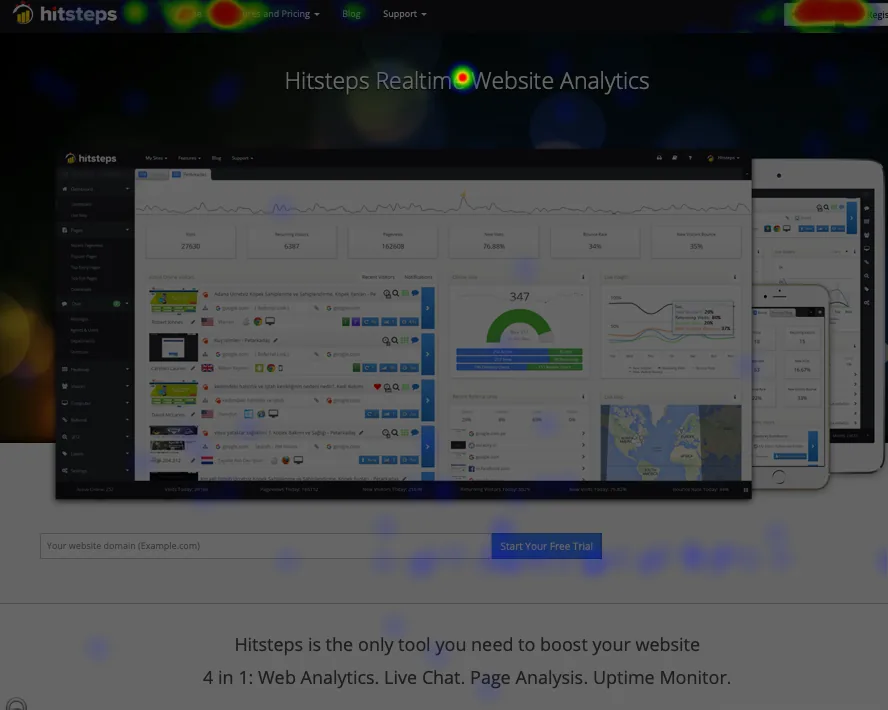

A journey can show what the tracking code observed, but it may not reveal why a person acted or whether an untracked technical error occurred. Use visitor detail alongside direct testing, aggregate reports, and customer feedback.
Start with a date and time that matches the campaign, customer question, error report, or website change you want to investigate.
Use the available source, landing page, device, location, Segments, or tracked actions to narrow the visitor list.
Follow pageviews and actions in order to understand what the visitor encountered before converting, asking for help, or leaving.
Check aggregate page, source, goal, or device reports before deciding whether the visit represents a recurring problem or an isolated case.
Confirm that a campaign visit reached the intended landing page and inspect the journey that followed the attributable click.
Use a legitimately known customer profile or visit details to understand the pages and actions that preceded a support request.
Inspect visits around a reported broken page, failed action, or sudden exit, then reproduce the issue before applying a fix.
Clear answers about what this feature reports, how to use it, and where its limits are.
The available period depends on the data history included with the Hitsteps plan and any applicable retention or privacy settings. The date selector does not make retention unlimited.
Not by default. An anonymous visit represents the browser or profile signals available to Hitsteps. A real identity should only be associated when the website legitimately supplies it after a direct interaction.
Pageviews and supported tracked activity can appear when the tracking code and relevant event setup record them. Examples may include external-link clicks, downloads, goals, or other configured interactions.
Connect this report with the surrounding visitor, acquisition, and workflow context.
Create a free account, install the Hitsteps tracking code, and confirm your first visit before choosing the plan that fits your traffic and reporting needs.